Connection to Webmin Server on Linux Stream 10
To work, you should open ports 22, 10000 (TCP) in the network properties in the Amazon firewall. After purchasing and starting the VM, you should know its IP address. You can find it in Amazon’s personal account
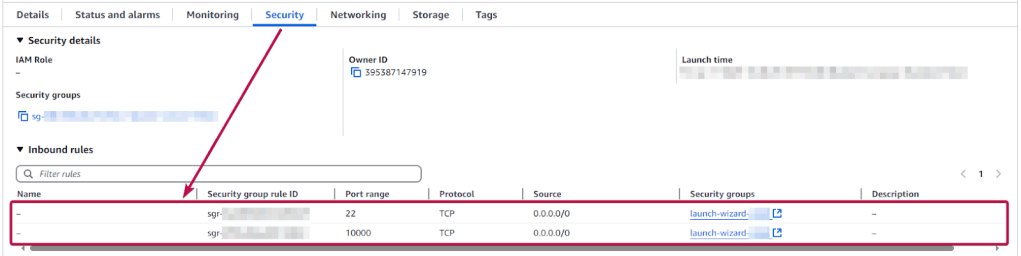
Creating Credentials
To connect to the Server, you should generate a “Private Key” in advance. This can be done using the following instructions (by choosing the “file format:” option “.ppk” in point 3) Guide – How To – Create and use Key Pair to connect to a VM
- Connecting to the VM using the PuTTY application. You can download it at the following link – Download
- Go to the SSH section on the left panel, and then to Auth
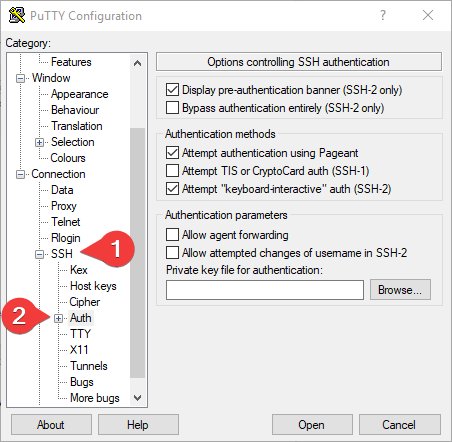
- In the “Auth” section, click “Browse” and specify the path to the .ppk file you received earlier.
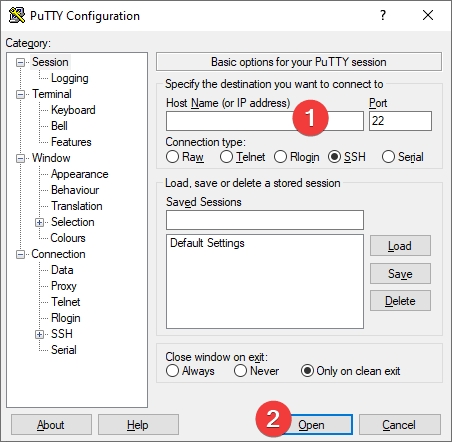
- Go to the home page of “Session”, enter the IP address of the VM, and click “Open”.
- In the opened console, you will need to enter the login ec2-user
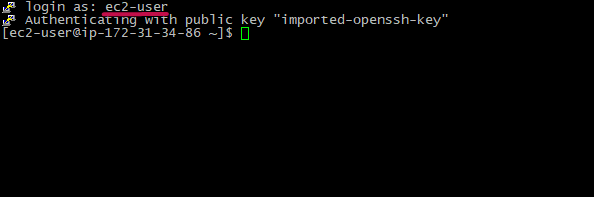
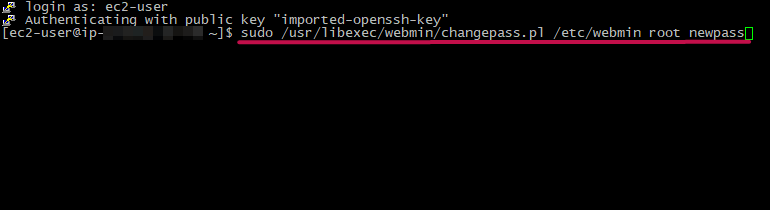
- Enter the next command in the console:
$ sudo /usr/libexec/webmin/changepass.pl /etc/webmin root NewPassWord, where NewPassWord is your new password
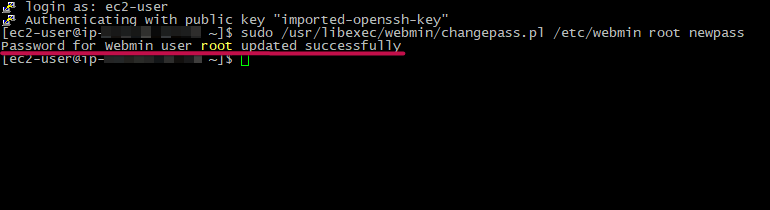
- The following message is displayed when a password has been set for the “root” user
Connecting to Webmin
- In your browser, enter https://ip:10000. For example – https://11.22.123.123:10000
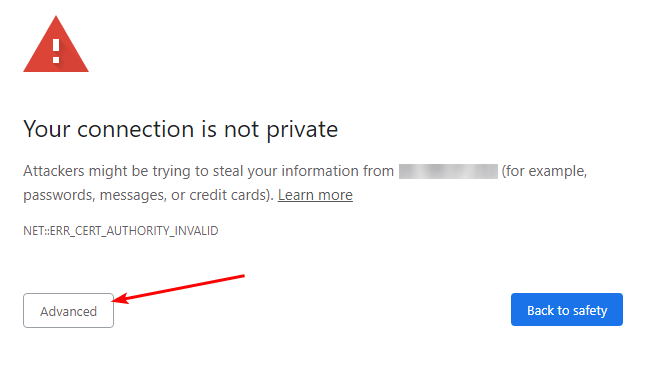
- When you go to the address, you will need to accept a self-signed certificate. For this, click the “Advanced” button and then “Proceed to “vm_ip”
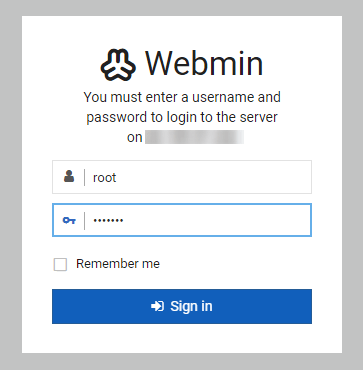
- The authorization page will open.
Enter username “root” and NewPassWord in the fields.
- To change the Username and Password, you need to click the “root” button.
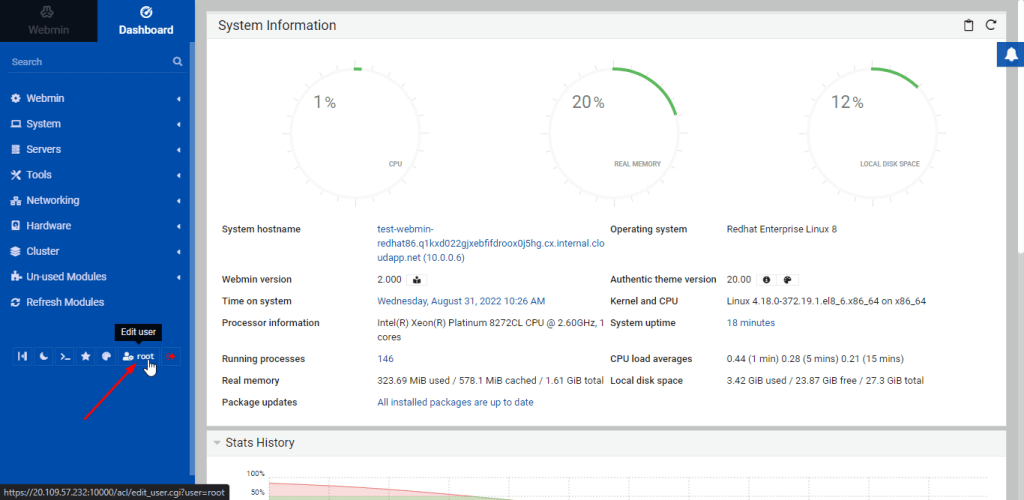
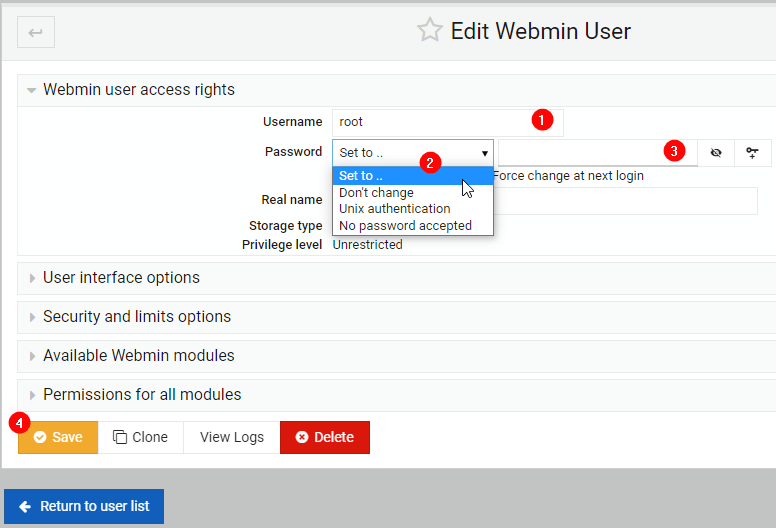
- For a change, follow the steps:
1) In the “Username” field – enter your nickname;
2) In the “Password” field, choose “Set to”;
3) Enter a new password;
4) Click the “Save” button.
More documentation about Webmin here – Webmin Documentation
Visit Webmin Forum to get answers to your questions
 Tidal Media Inc. — Software for Windows & Cloud Solutions