Configuration and Connection to PureFTPD on Ubuntu Server 22.04
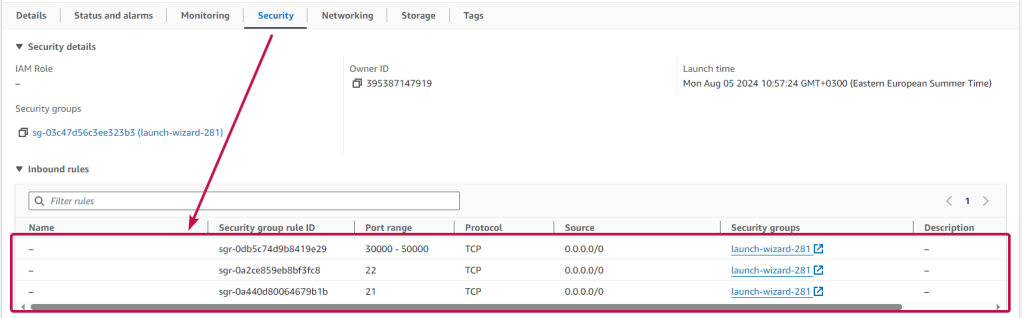
To work, you should open ports 21, 22, and 30000-50000 (TCP) in the network properties in the Amazon firewall. After purchasing and starting the VM, you should know its IP address. You can find it in your Amazon account.
To connect to the Server, you should generate a “Private Key” in advance. This can be done using the following instructions (by choosing the “file format:” option “.ppk” in point 3): Guide – How To – Create and use Key Pair to connect to a VM
- Connecting to the VM using the PuTTY application. You can download it at the following link – Download.
- Go to SSH on the left panel, and then in Auth.
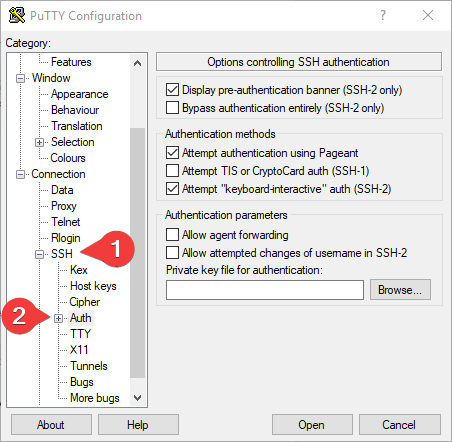
- In the “Auth” section, click “Browse” and specify the path to the .ppk file you received earlier.
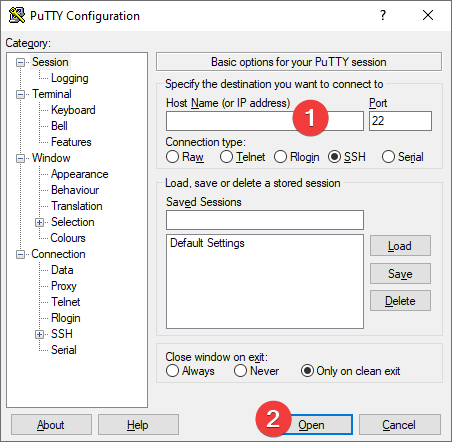
- Go to the “Session” home page, enter the VM’s IP address, and click “Open”.
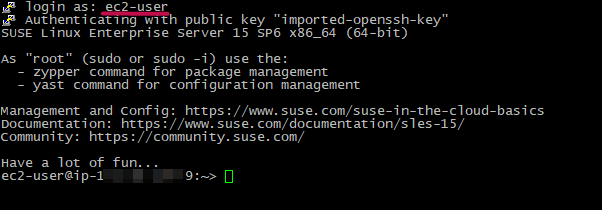
- In the opened console, you will need to enter the login ec2-user
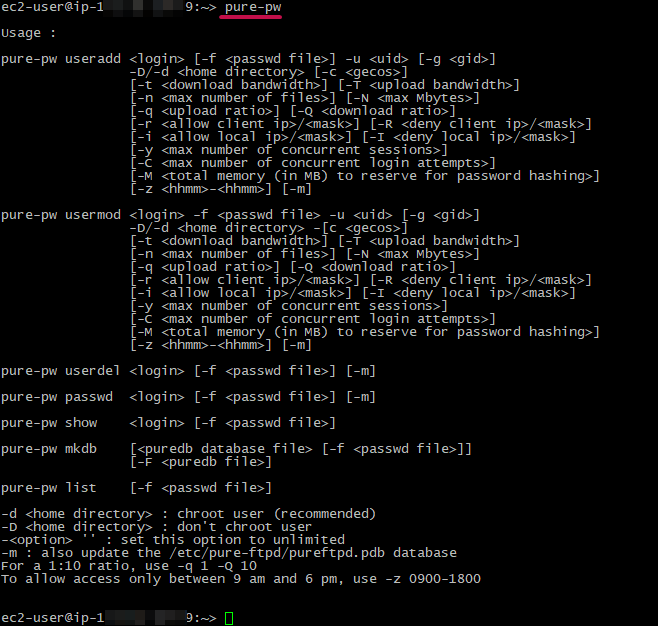
- For help managing users, type pure-pw
- Next, you should enter the following commands:
> sudo ftpusers
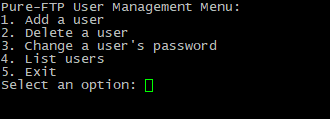
To create a new user, type “1” and press Enter.

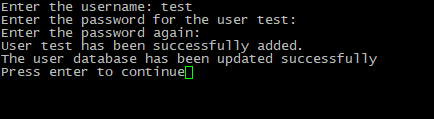
Write a username and press Enter.
еnter and confirm the password for the new user
Connecting to FTP using “FileZilla Client”
- To connect to PureFTPd, it is recommended to use the “FileZilla Client” application (you can download it from the link: Download FileZilla Client for Windows (64-bit x86)).
- When connecting to the ftp server, you need to follow these steps:
- In the <Host> field, enter the VM IP address.
- In the <Username> field, enter the name of the user you created in step 3 of the previous section.
- In the <Password> field, enter the user password you created in step 3 of the previous section.
- In the <Port> field, enter port 21
- When the data is entered, press Quickconnect
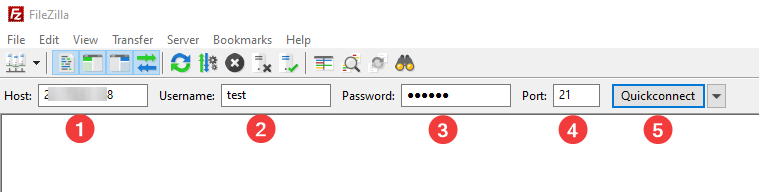
- After entering all the data and clicking on Quickconnect, you will successfully connect to the server.
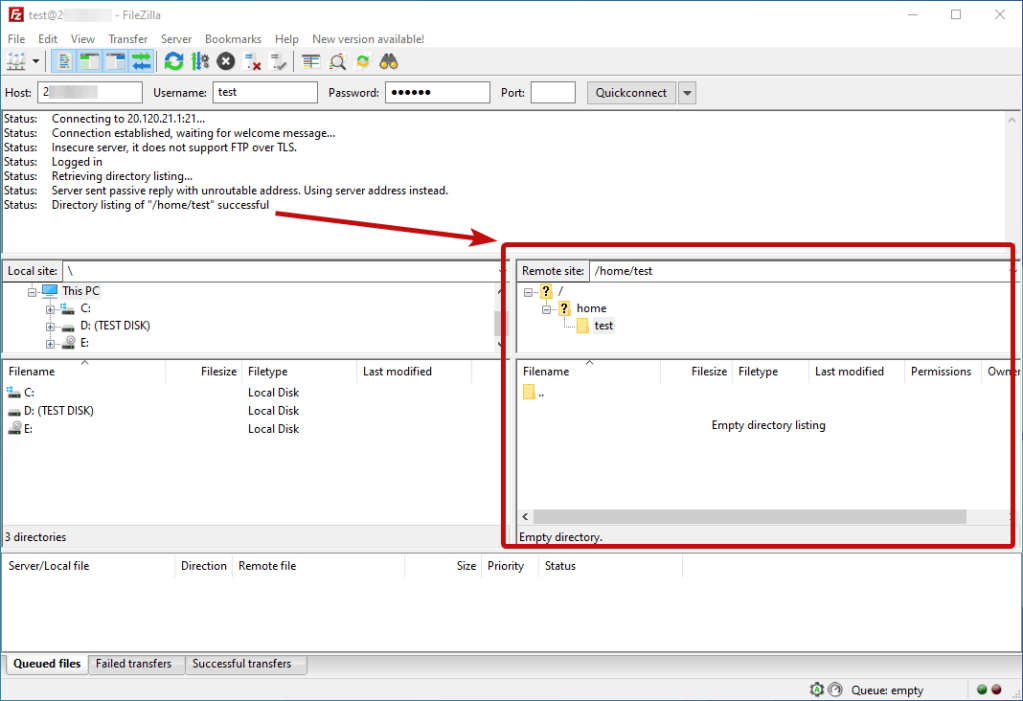
Now you can work with your own PureFTPd server.

