ownCloud is a suite of client–server software for creating and using file hosting services. It functionally has similarities to the widely used Dropbox.

This is a quick deployment and ready-to-run image.
Simple and rapid installation. Easy to maintain.
Connection to TeamSpeak – VoIP System for Gamers on Ubuntu 20.04
- Start your VM
To start the server, you just need to start the VM.
- To customize the Server, first, you need to know the server IP address. You need to select the virtual machine from the list. Your IP is displayed in the line “Public IPv4 address”.
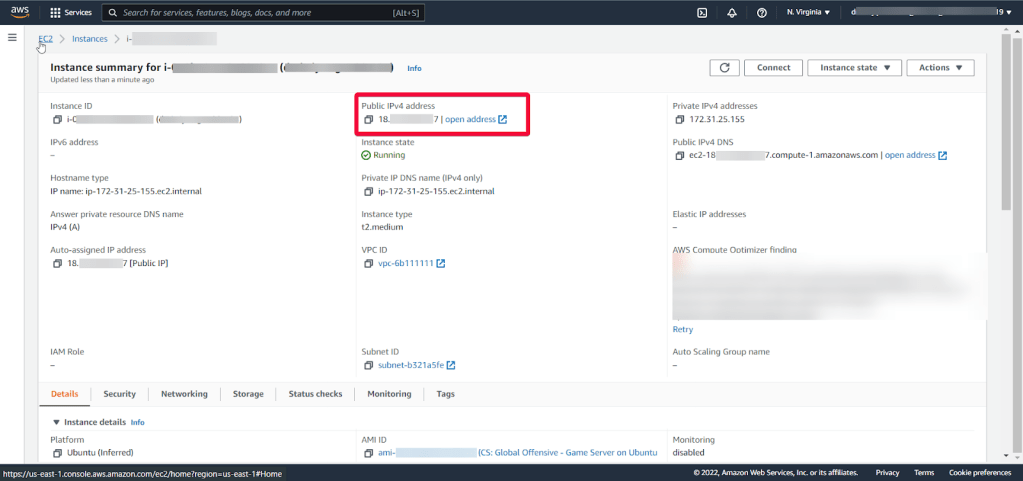
- For the server to be usable, open ports 10011, 10022, 30033, 41144 TCP and 9987 UDP in your VM’s security group.


- Static IP Address – Your virtual machine should have the static IP address if you do not want to constantly change the chat settings (because if the address is elastic, after the rebooting of the machine it’ll change to the static one).
- Get credentials
- To get the credentials, you should connect to the VM. To do that, generate a Private Key in advance. This can be done using the following instruction (by choosing the file format: option .ppk in point 3) Guide – How To – Create and use Key Pair to connect to a VM
- Download and run Putty
- Go to the SSH section in the left panel (1) and then to Auth (2).

In the Auth section, click Browse and specify the path to the .ppk file you received earlier.
- Go to the home page of the Session, enter the IP address of the VM (1), and click Open (2).
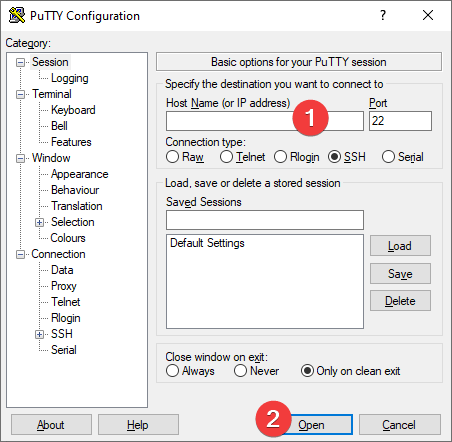
- In the opened console, you will need to enter the login Ubuntu
- Enter the command sudo cat /opt/teamspeak-server/ServerAdmin_creds.txt and save login (1), password (2), apikey (3) and token (4)

- Connect to your server
- An installed TeamSpeak 3 client is required to connect to the server
- Launch the TeamSpeak app. You can skip authorization by clicking the Continue without logging in button.
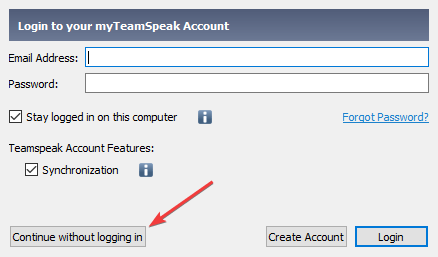
- In the next step, select the name that other users will see.

- Click Connections -> Connect.

- Enter the IP of the virtual machine (1), your nickname (2) and click Connect

- The first time you connect, you must maintain the privilege key (token). Enter the token from step 2f to end the connection and designate the current user as an administrator
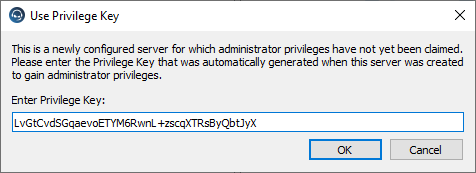
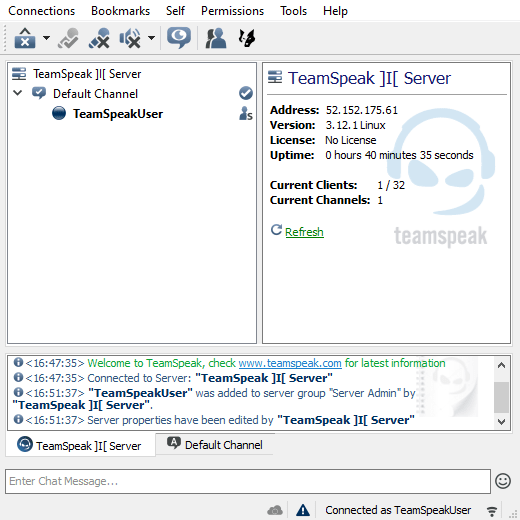
- Done. You are connected to your server. Other users can join you on the IP address of the virtual machine.
- To use Server Query apply login, password, and apikey from the step 2-f
You can find information on further server configuration at the following address TS3 – TeamSpeak
 Tidal Media Inc. — Software for Windows & Cloud Solutions