Our VPN Server provides flexible VPN solutions to secure your data communications, whether it’s for Internet privacy, remote access for employees, securing IoT, or for networking Cloud data centers.

This is a quick deployment and ready-to-run image.
Simple and rapid installation. Easy to maintain.
The connection to the VPN Server on Linux CentOS Stream 9
After purchasing and starting the VM, you should know its IP address. You can find it in Amazon’s personal account.
To connect to the Server, you should generate a “Private Key” in advance. This can be done using the following instructions (by choosing the “file format:” option “.ppk” in point 3) Guide – How To – Create and use Key Pair to connect to a VM
- Connecting to the VM using the PuTTY application. You can download it at the following link: Download
- Go to the section SSH on the left panel, and then to Auth
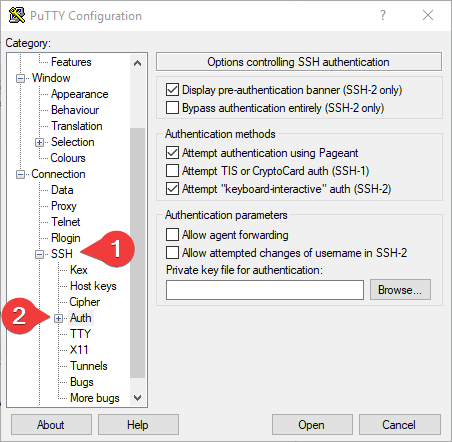
- In the “Auth” section, click “Browse” and specify the path to the .ppk file you received earlier.
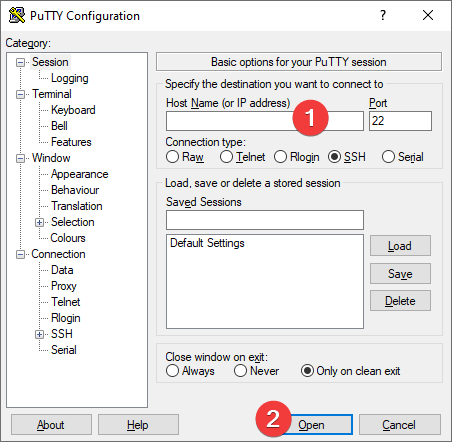
- Go to the home page of “Session”, enter the IP address of the VM, and click “Open”.
- In the opened console, you will need to enter the login ec2-user.
- Next, you should enter the following commands:
> sudo vpnusers
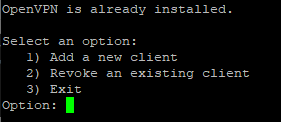
- To create a new user, type “1” and press Enter
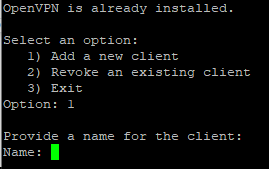
- Write a username and press Enter
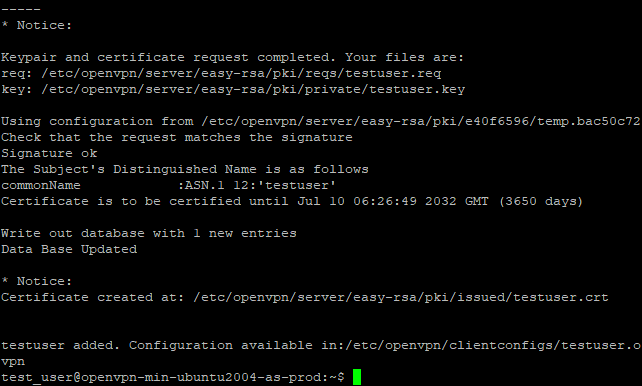
- The last line will tell you where the config file is available (exampleuser.ovpn in this case)
- You need to copy the contents of this file. To do this, display the contents of the file on the screen with the following command:
> cat /etc/openvpn/clientconfigs/”exampleuser”.ovpn
Don’t forget to replace “exampleuser” with the username that was created in step 5
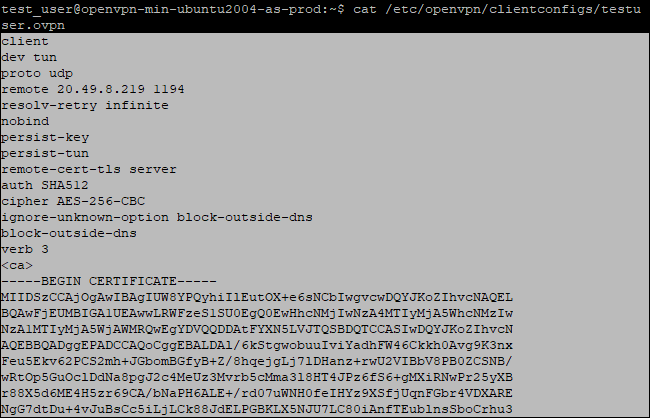
- Copy the entire contents of the file by selecting it and pressing Ctrl + C
- Open Notepad or any other text editor and paste the contents of the file into a blank document
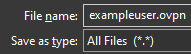
- Save the file with the extension .ovpn
- Run OpenVPN Connect. If you don’t have OpenVPN installed, you can download it here.
- In the open window, specify the path to the file that you unpacked from the archive and click “OK”.
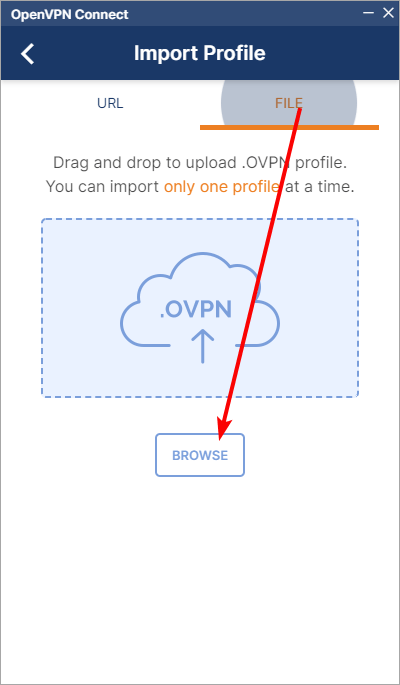
- Click Connect
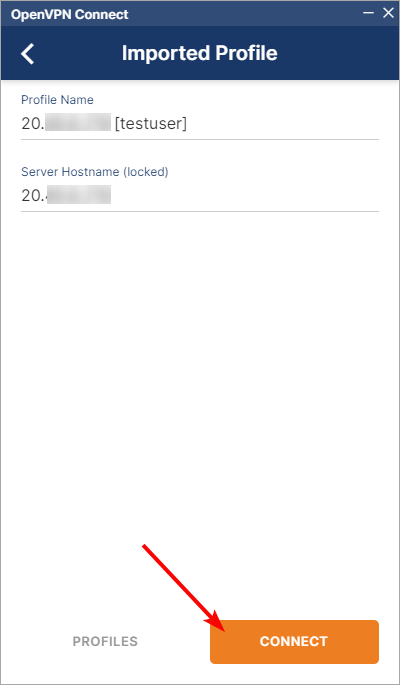
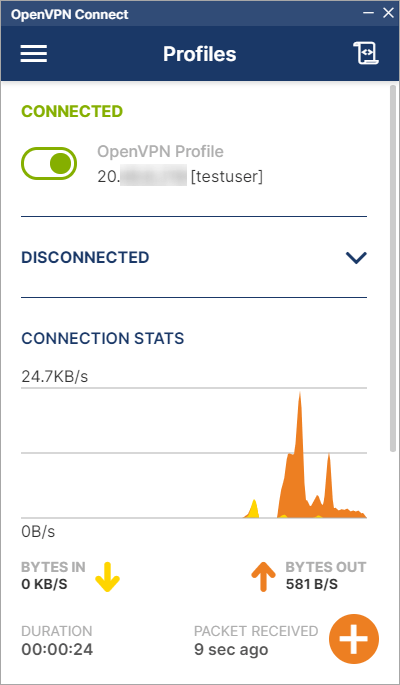
- If the connection is successful, the following window is displayed: