Connection to Nginx on SLES 15 SP6
To work, you should open ports 22 and 80 (TCP) in the network properties in the Amazon firewall. After purchasing and starting the VM, you should know its IP address. You can find it in Amazon’s personal account.
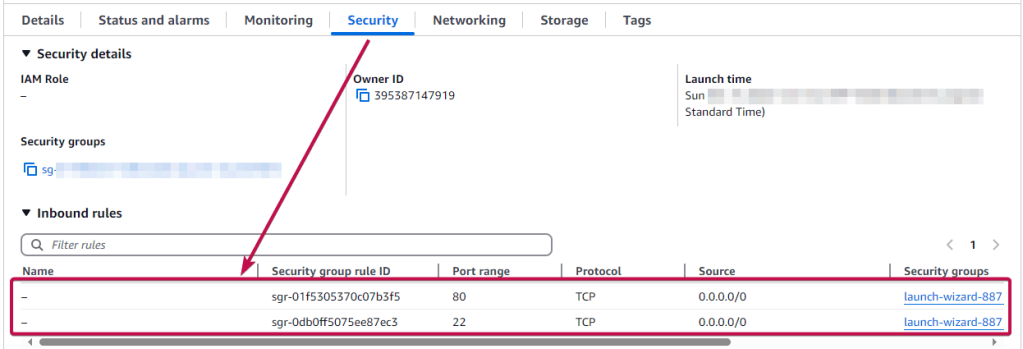
To connect to the Server, you should generate a “Private Key” in advance. This can be done using the following instructions (by choosing the “file format:” option “.ppk” in point 3): Guide – How To – Create and use Key Pair to connect to a VM.
- Connecting to the VM using the PuTTY application. You can download it at the following link – Download.
- Go to the SSH section on the left panel, and then to Auth.
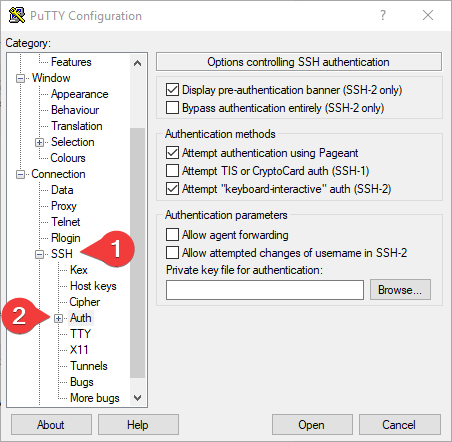
- In the “Auth” section, click “Browse” and specify the path to the .ppk file you received earlier.
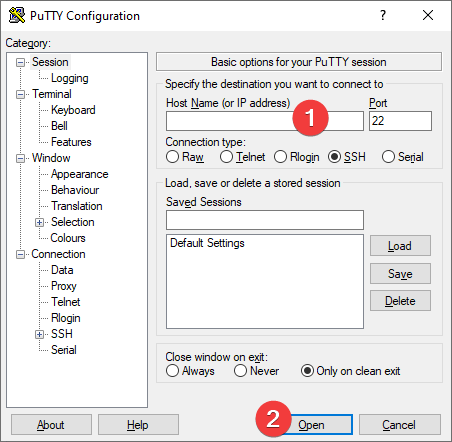
- Go to the home page of “Session”, enter the IP address of the VM, and click “Open”.
- In the opened console, you will need to enter the login ec2-user
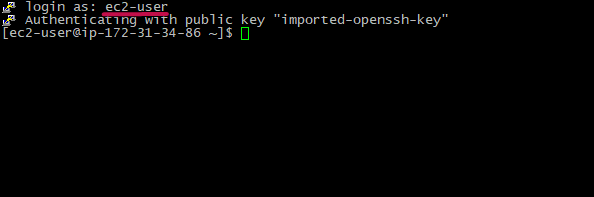
- To check that Nginx is up and running and get the list of all running nginx processes, enter the command:
ps -ax | grep nginx

Once Nginx is started, it can be controlled by invoking the executable with the -s parameter. Use the following syntax:
nginx -s signal
Where signal may be one of the following:
- stop — fast shutdown
- quit — graceful shutdown
- reload — reload the configuration file
- reopen — reopen the log files
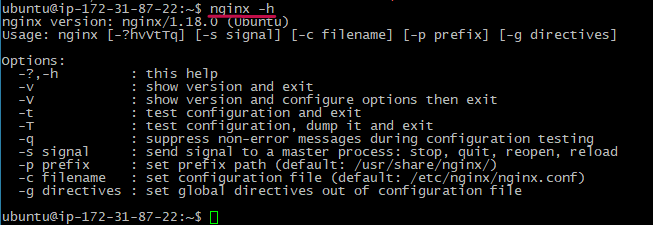
- To know the Nginx version and get help, enter nginx -h
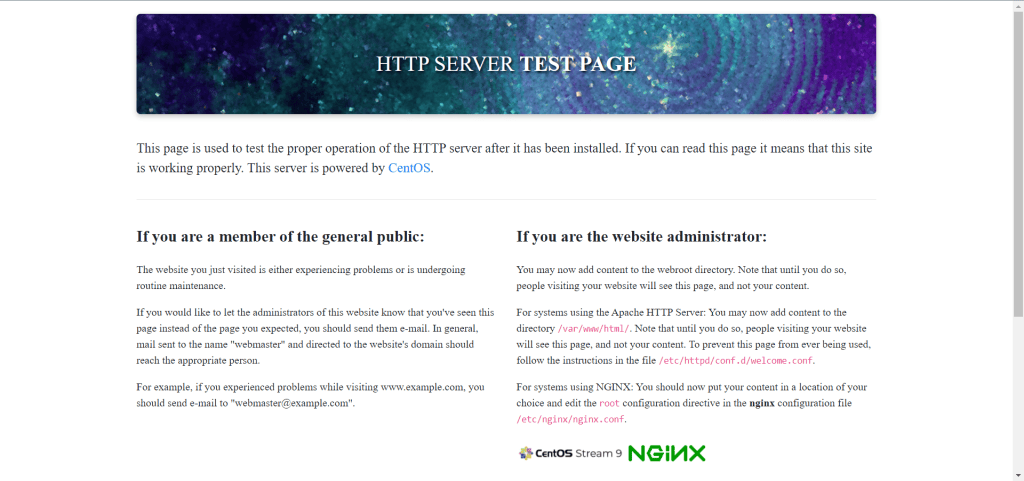
- Entering http://*VM_IP* in a browser window opens a test server page.
More documentation about Nginx here – Beginner’s Guide.
Get answers to your questions – FAQ.
 Tidal Media Inc. — Software for Windows & Cloud Solutions