Connection to iPerf3 Server on Linux Stream 10
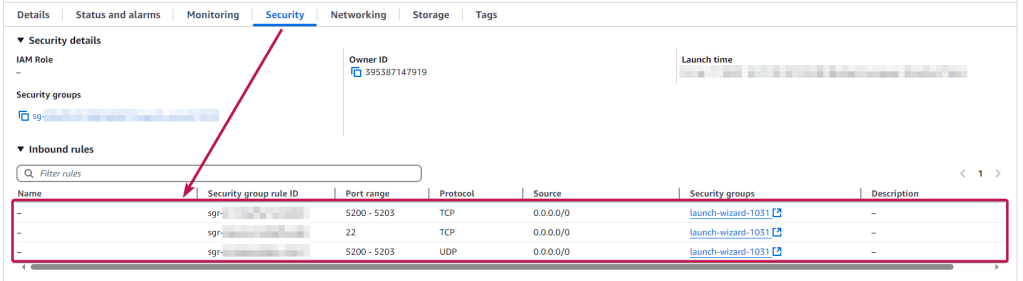
To work, you should open ports 22, 5200-5203 (TCP), and 5200-5203 (UDP) in the network properties in the Amazon firewall. After purchasing and starting the VM, you should know its IP address. You can find it in Amazon’s account.
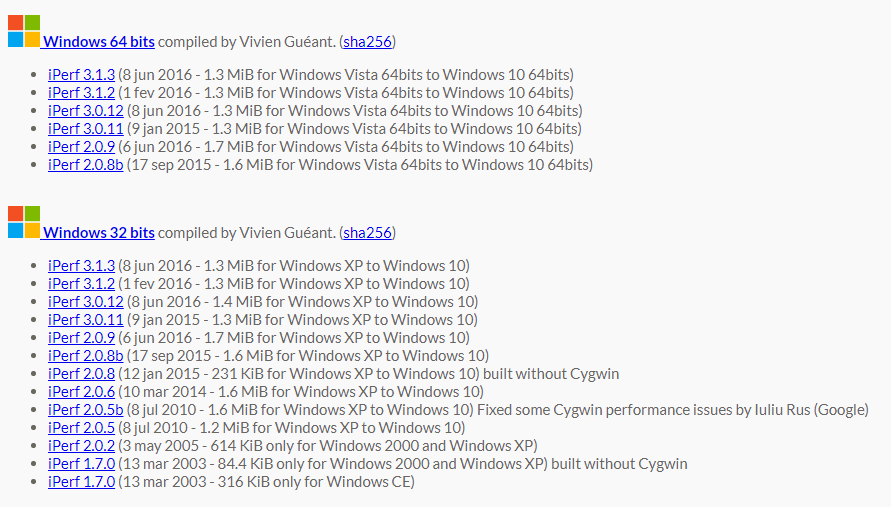
- Download the iPerf3 client for your operating system to perform a speed check.
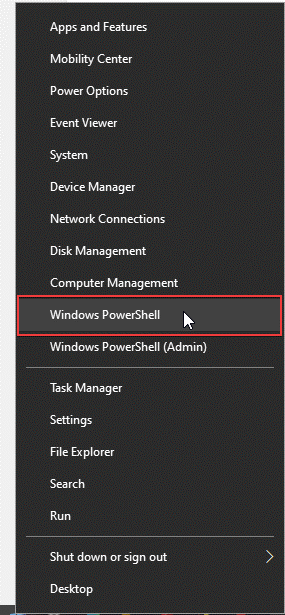
- To start the app, you need to run PowerShell or a console (right-click on the Start menu)
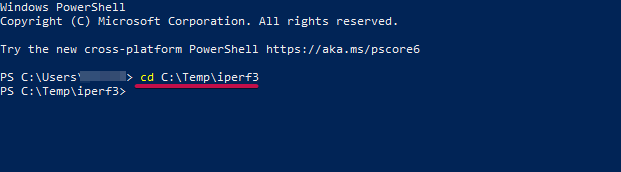
- In the console, navigate to the iPerf3 client installation directory (in our case, this is > cd C:\Temp\iperf3)
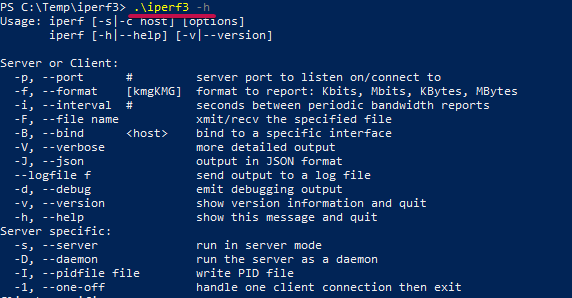
- To get help on usage, enter the >.\iperf3 -h command.
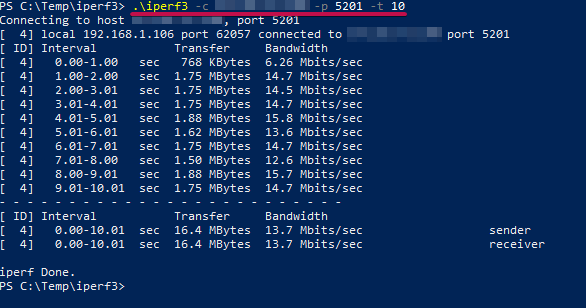
- Enter the command for the connection speed check (for example, for a 10-second test, the command is: “.\iperf3 -c xx.xx.xxx.xx -p 5201 -t 10” where instead of xx enter the IP address of your VM)
To connect to the Server, you should generate a “Private Key” in advance. This can be done using the following instructions (by choosing the “file format:” option “.ppk” in point 3) Guide – How To – Create and use Key Pair to connect to a VM
- Connecting to the VM using PuTTY. You can download it at the following link – Download.
- Go to the SSH section on the left panel, and then to Auth.
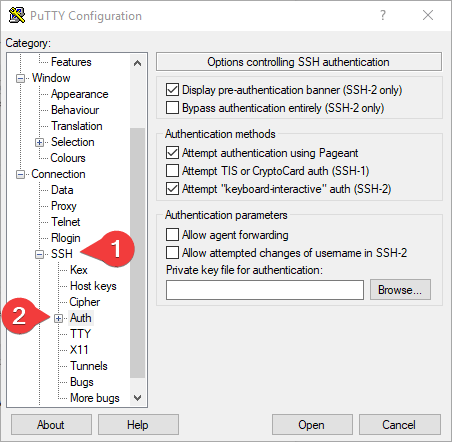
- In the “Auth” section, click “Browse” and specify the path to the .ppk file you received earlier.
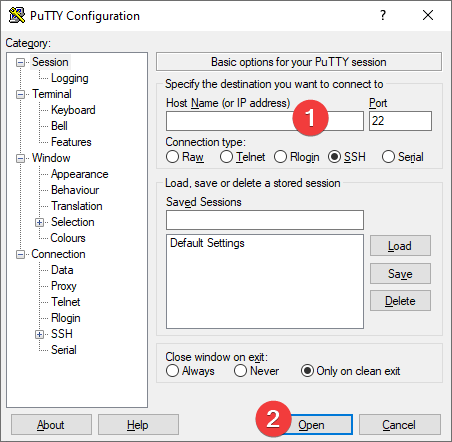
- Go to the home page of “Session”, enter the IP address of the VM, and click “Open”.
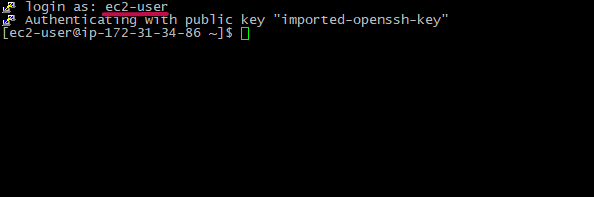
- In the opened console, you will need to enter the login ec2-user
- Check the status of the server by running the command:
> sudo systemctl status iperf3
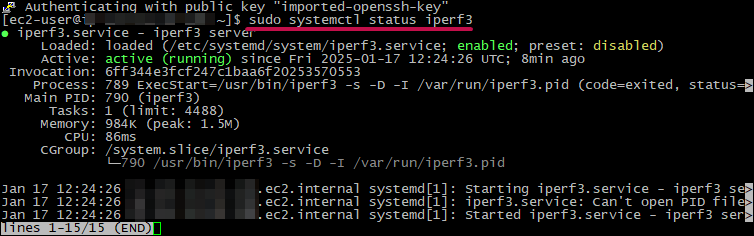
Now you can use iPerf3 Server on Linux Stream 10
If you have any questions, please refer to the

