Firebird is a relational database offering many ANSI SQL standard features that run on Linux, Windows, and a variety of Unix platforms. Firebird offers excellent concurrency, high performance, and powerful language support for stored procedures and triggers.

This is a quick deployment and ready-to-run image.
Simple and rapid installation. Easy to maintain.
Connecting and configuring Firebird 3.0.7 on Ubuntu 20.04 LTS
To start the server, start the virtual machine through Amazon.
For the VM to work, you need to open port 3050 (TCP), in the network properties in Amazon Firefall.
To connect to the database, you should generate a “Private Key” in advance. This can be done using the following instruction (by choosing the “file format:” option “.ppk” in point 3)
Guide – How To – Create and use Key Pair to connect to a VM
Retrieving a password from a database
- Download and run Putty
- Go to the “SSH” section in the left panel and then to “Auth”.
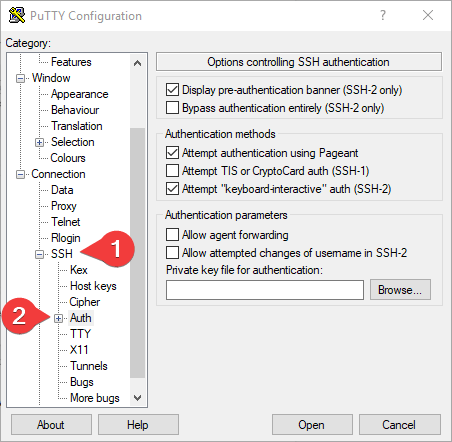
- In the “Auth” section, click “Browse” and specify the path to the .ppk file you received earlier.
- Go to the home page of “Session”, enter the IP address of the VM, and click “Open”.
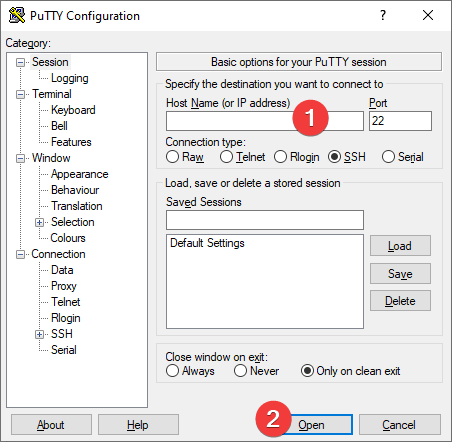
- In the opened console, you will need to enter the login ubuntu
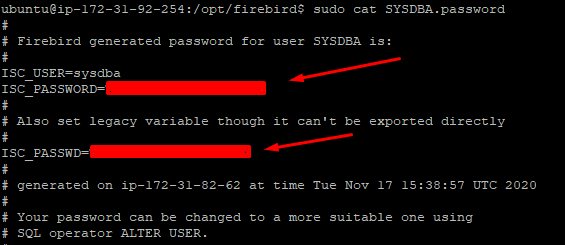
- Next, you should find the password for the database in a specific file. To do this, enter two commands in turn:
> cd /opt/firebird
> sudo cat SYSDBA.password

- Now you should write down (copy) the password from the ISC_PASSWORD or ISC_PASSWD field (they are the same). It is necessary to connect to the database.
The connection to FireBird using DBeaver through SSH Tunnel
- Go to the page for downloading DBeaver – Download
- Download the software distribution that is convenient for you, Windows 64-bit (installer) for example. (A newer version of DBeaver may be released. All actions will remain the same for the higher version.)

- Run the downloaded file and finish the installation process
- Start the DBeaver
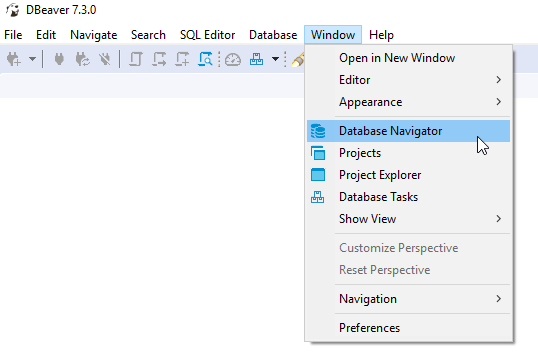
- Go to the Window and click Database Navigator
- Click on the button to establish the new connection
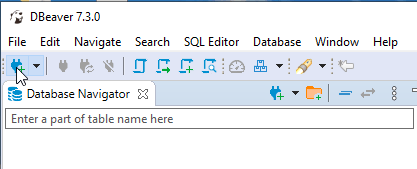
- In the list that appeared, find and select “Firebird”, then click the “Next” button

- In the “Path” field, specify the path to the database located on the VM. By default, The test Database will be created along the path: /opt/firebird/examples/empbuild/employee.fdb
- In the “Username” field, enter the username “sysdba” and the password, which we received earlier, to connect to the DB. The other fields in the tab leave with no changes. It is strongly recommended to change the password, after connecting to the database.

- Click “OK” to save.
- Then click “Connect” in the context menu of the database.

- While connecting, the window with the driver files installation may appear. Click “Download”, after that the connection to the database will be continued.

 Tidal Media Inc. — Software for Windows & Cloud Solutions