1. Launching the Application
After installation, open the application and ensure it is ready for use.
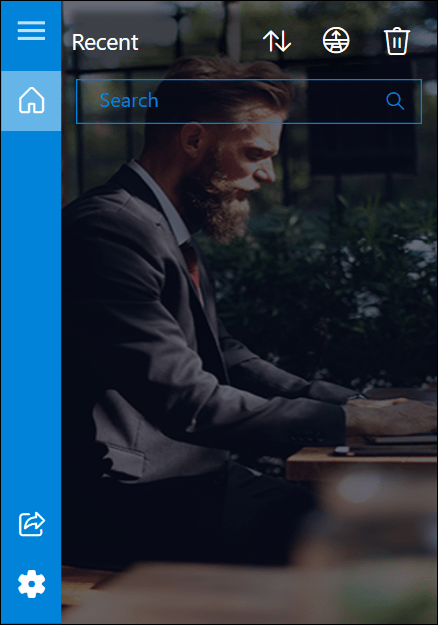
2. Settings Configuration
Before starting, we recommend configuring the application.
To do this, open Settings, where the following options are available:
- Set clipboard limits – defines how long clipboard history items are stored.
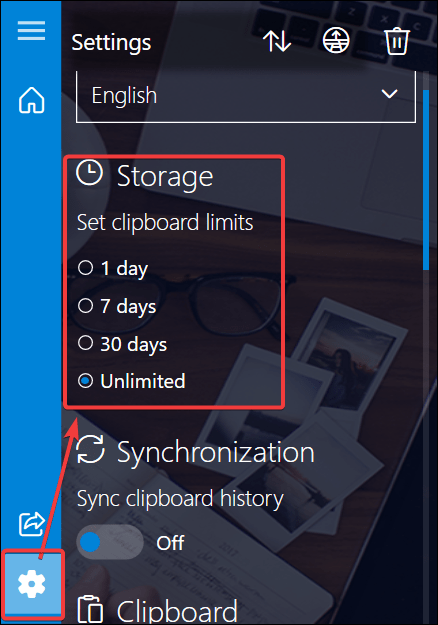
- Sync clipboard history – Synchronizes clipboard history within the same account across multiple devices. After enabling this feature, you must sign in using a Microsoft Account.
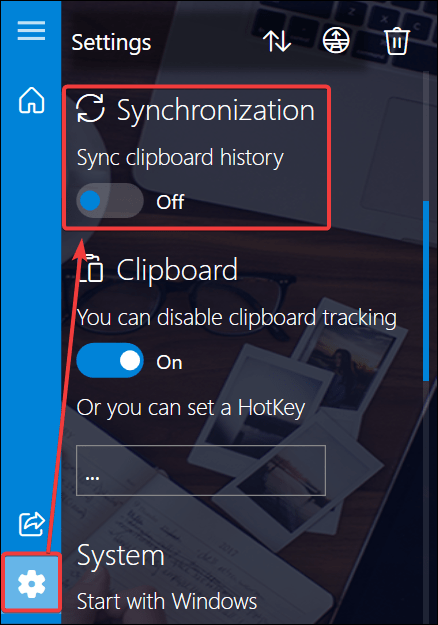
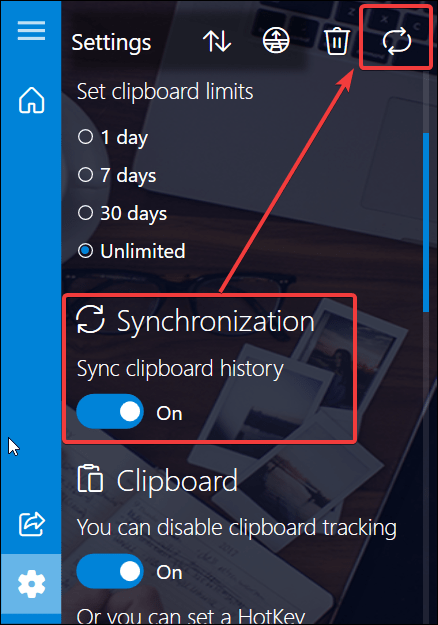
Cloud synchronization occurs automatically. For user convenience, once synchronization is enabled, a sync button appears in the top panel, allowing manual synchronization at any time. Clicking this button starts the synchronization process with the cloud storage.
- Clipboard – tracks and stores clipboard history. Enabled by default. If disabled, copied items will not be saved in the application.
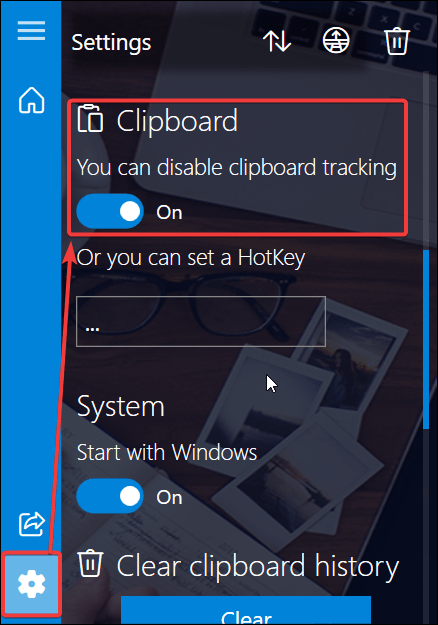
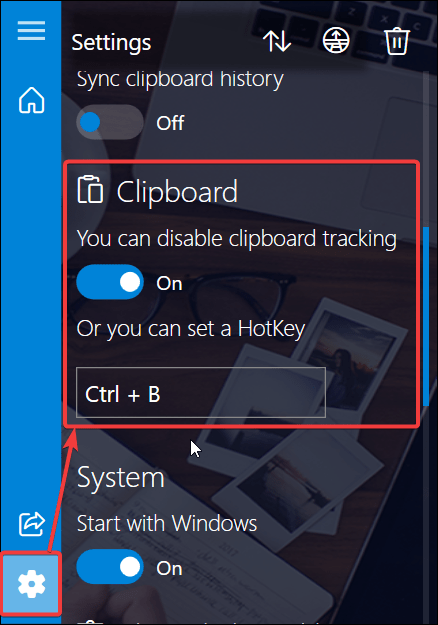
- You can also configure a HotKey to enable or disable saving copied items.
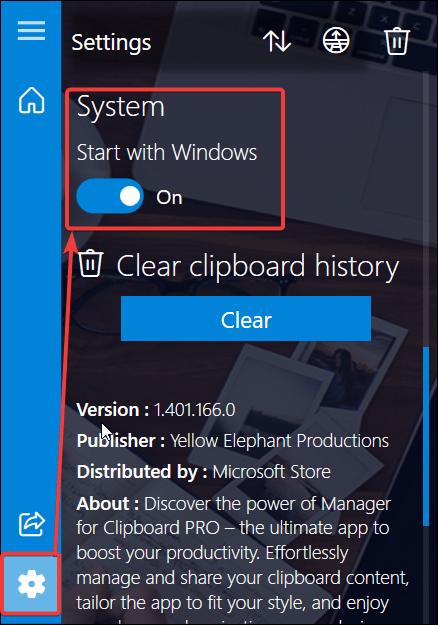
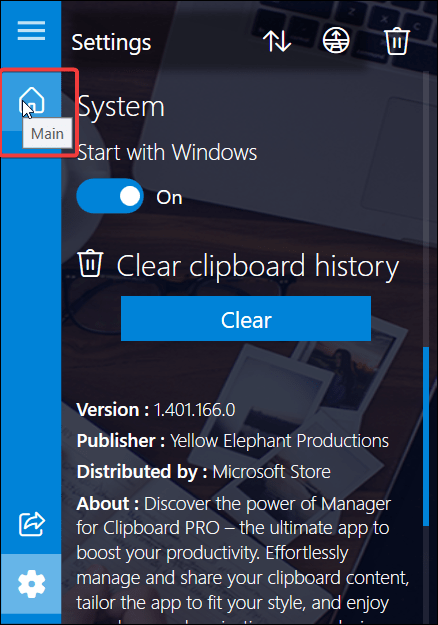
- Start with Windows – launches the application automatically when the operating system starts.
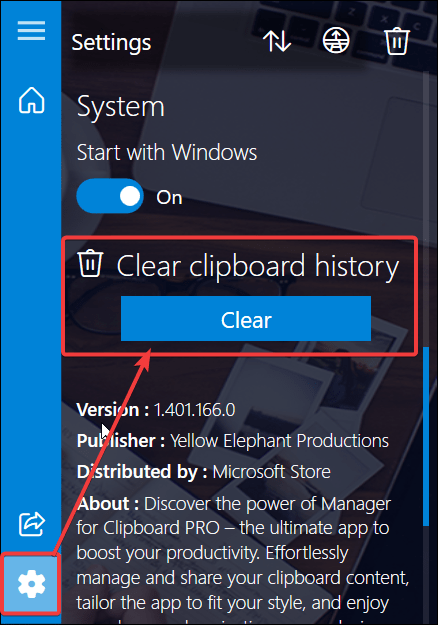
- Clear – deletes the entire clipboard history.
- To return to the Home page, click the Main button.
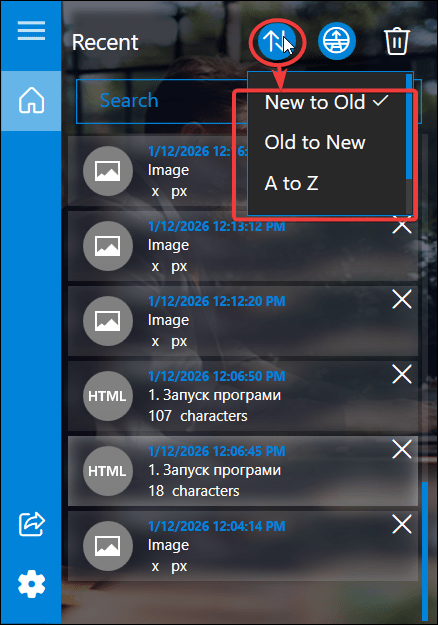
- Clipboard data can be sorted by date or alphabetical order
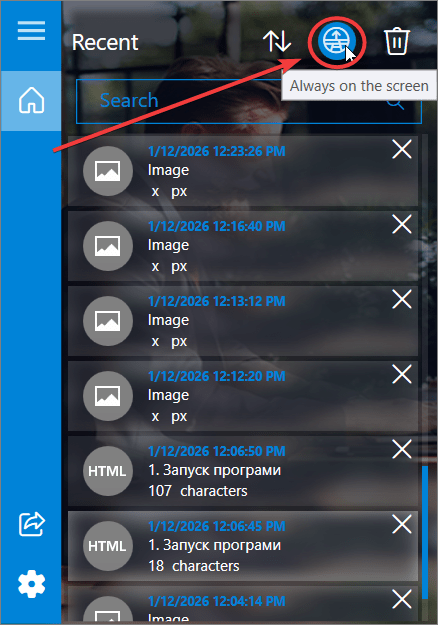
- Always on the Screen – allows you to keep the application window above all other windows (always-on-top mode).
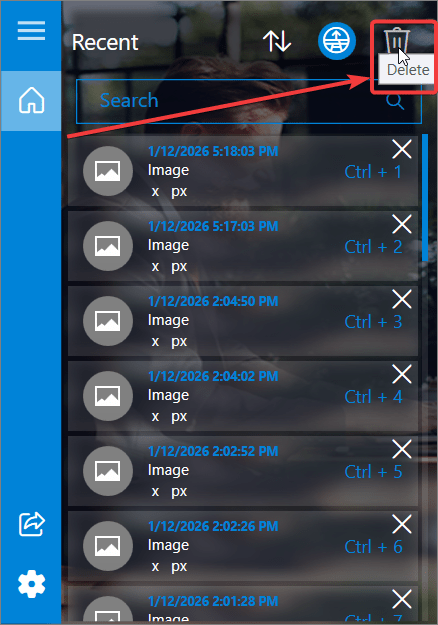
- The Delete button in the main menu completely clears the entire clipboard history.
Pasting Data from Clipboard
To paste text, links, or images:
- Click the corresponding entry to transfer it to the system clipboard.
- Paste using:
- The context menu in applications
- A browser
- The file system
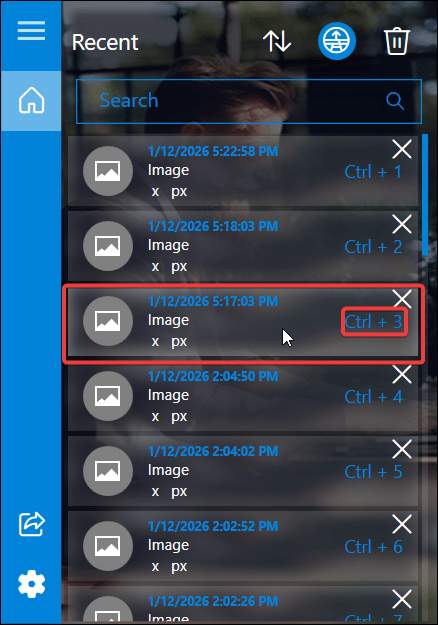
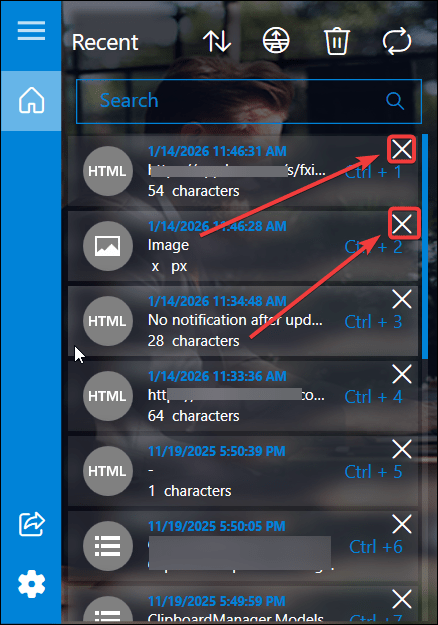
- You can delete a specific item by clicking the Delete button available on each copied entry.
If you have any additional questions or require further assistance, please feel free to contact our support team at support@tidalmediainc.com. We will be happy to assist you.
 Tidal Media Inc. — Software for Windows & Cloud Solutions