1. Launching the Application
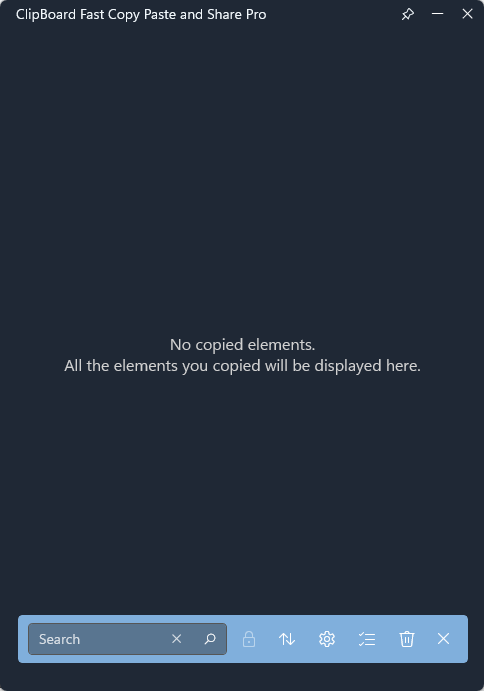
After installation, open the application and ensure it is ready for use.
2. Settings Configuration
Before starting, we recommend configuring the application.
To do this, open Settings, where the following options are available:
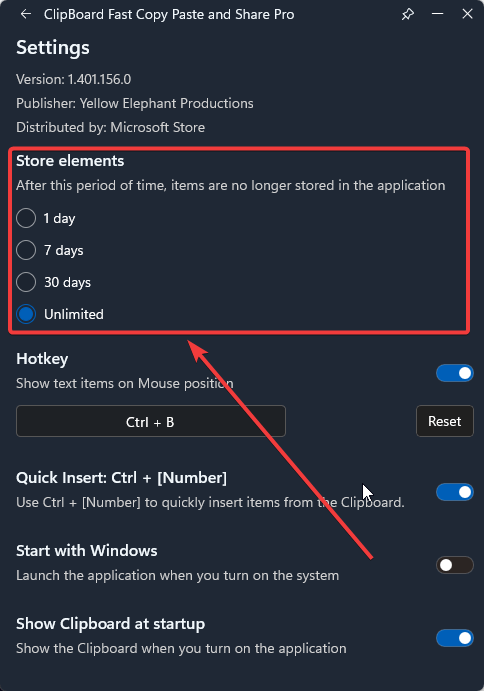
- Store Elements – defines how long clipboard history items are retained.
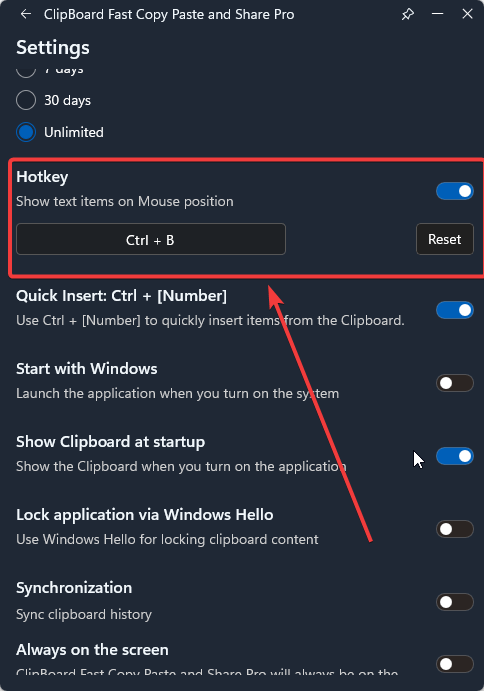
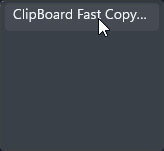
- Hotkey – displays a list of all previously copied items for quick selection and insertion.
Quick insert – allows fast insertion of the last 10 copied items, based on the selected filter in the main menu.
Use CTRL + [Number] to execute this action
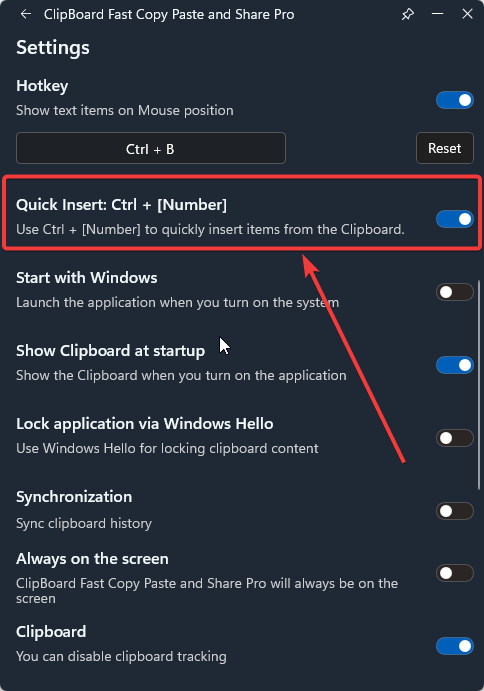
- Start with Windows – launches the application automatically when the operating system starts.
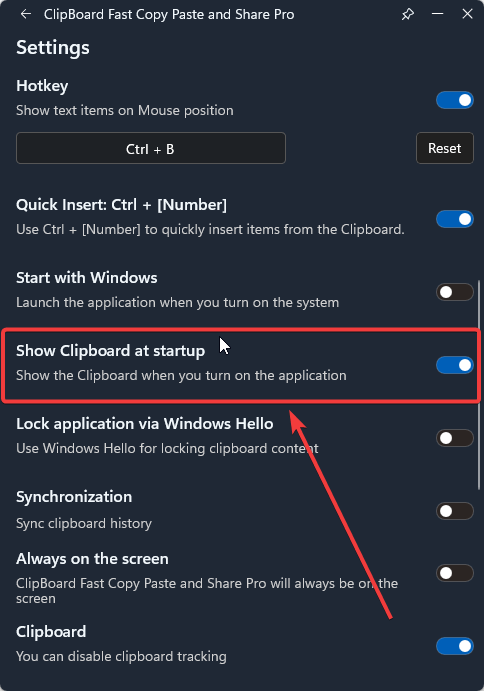
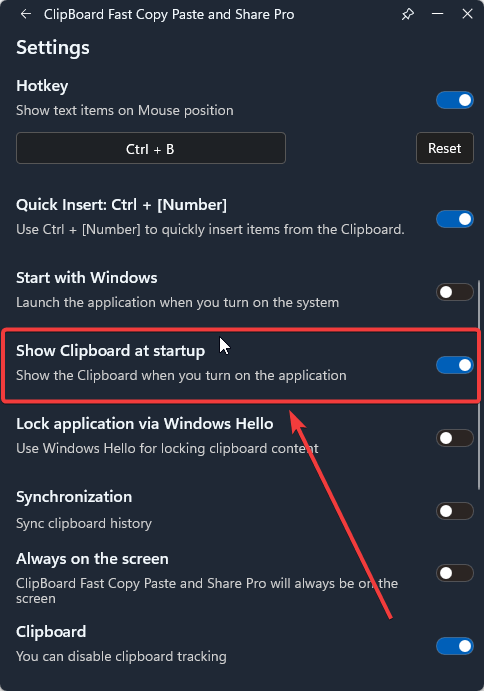
- Show Clipboard at startup – displays the application window immediately after launch. If disabled, the application will start minimized in the system tray.
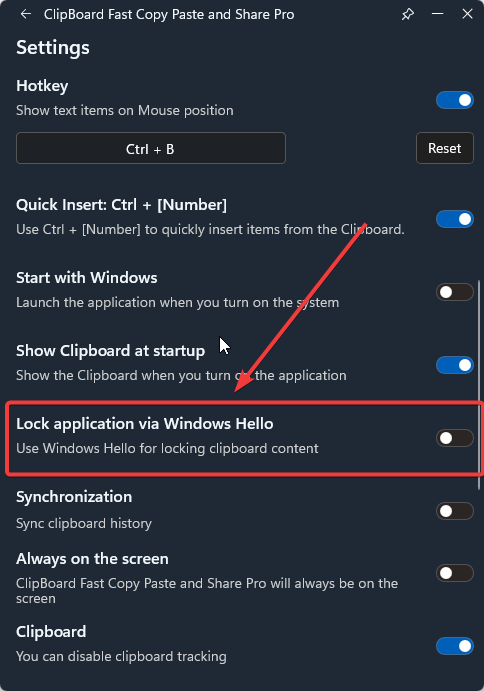
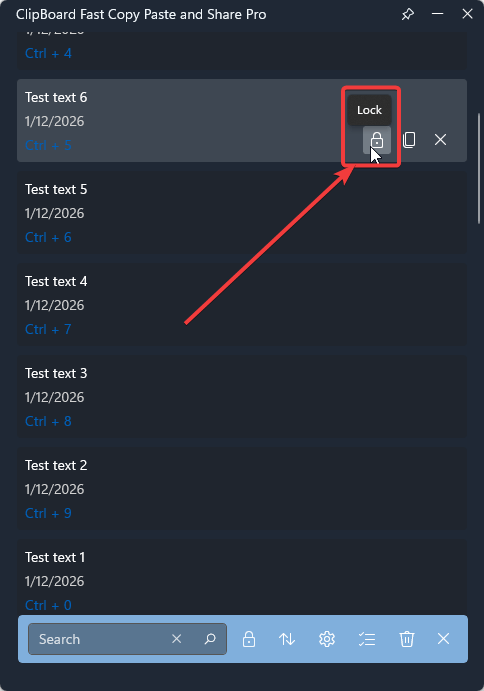
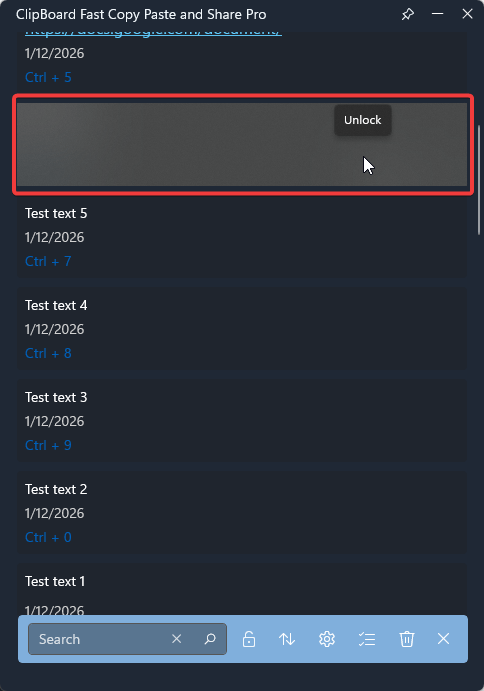
- Lock application via Windows Hello – When enabled, selected values are blurred. To unlock them, the user must enter their Windows system password. This feature works only if Windows Hello is enabled in Windows settings.
- Synchronization – Synchronizes clipboard history within the same account across multiple devices (after enabling this feature, you must sign in with a Microsoft Account).
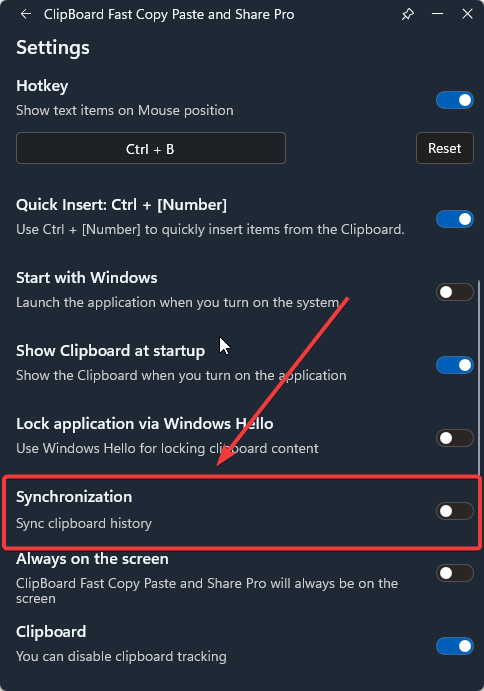
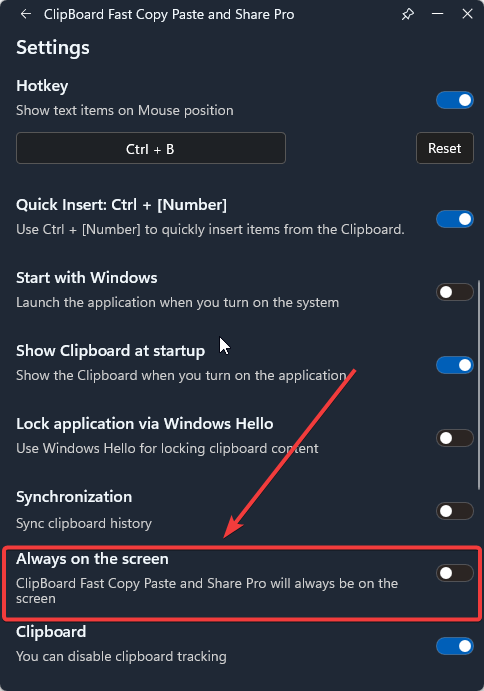
- Always on screen – keeps the application window above all other windows (always-on-top mode).
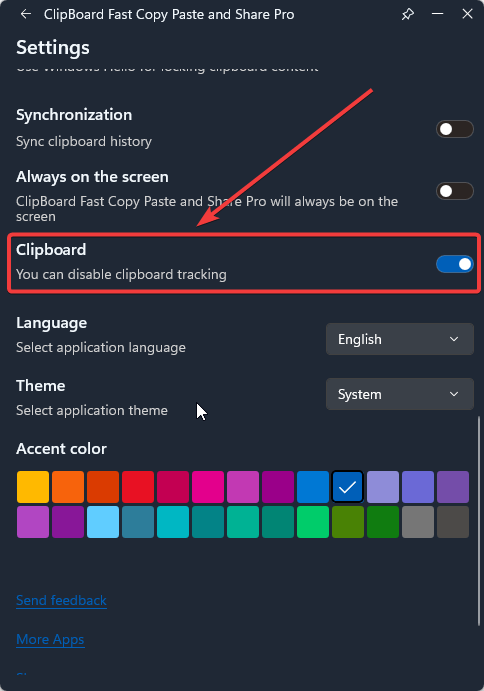
- Clipboard – tracks and stores clipboard history. Enabled by default. If disabled, the clipboard history will not be saved in the application.
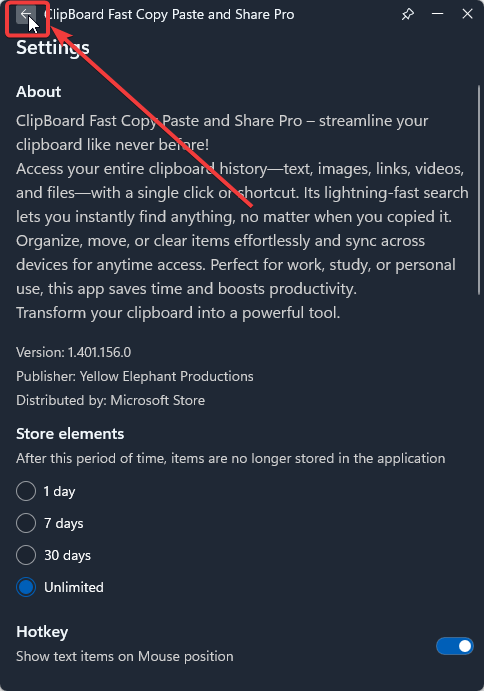
To return to the main menu, click the Back button.
3. The main menu provides the following functionality:
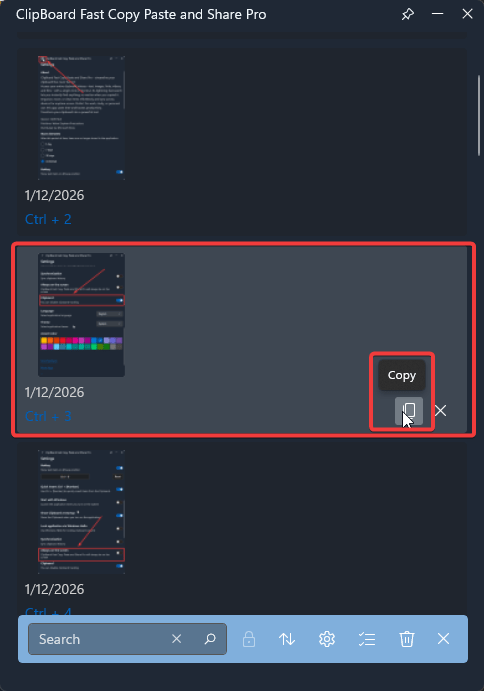
- Copying Previously Saved Items. Select and copy any previously stored item. Supported content types include text, links, images, and other files. To copy: Click Copy on the selected item. Paste using CTRL + V or use hotkeys: CTRL + B or CTRL + [Num 1–0].
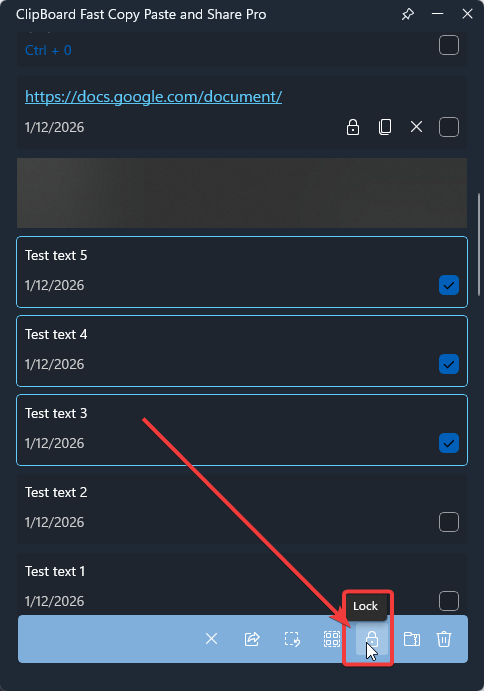
- When Lock Application via Windows Hello is enabled, you can hide any copied item: Click Lock on the selected item to hide it.
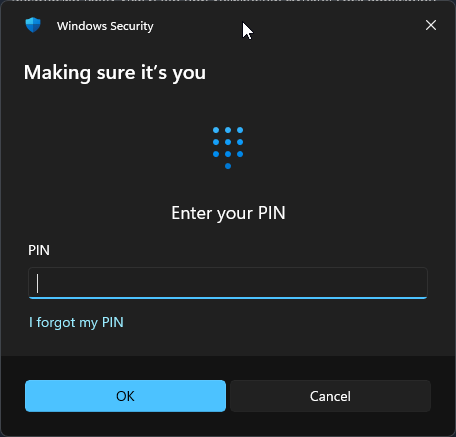
- To reveal the data again, left-click the item and enter your Windows Hello PIN.
- A built-in Search function allows you to quickly find specific items.
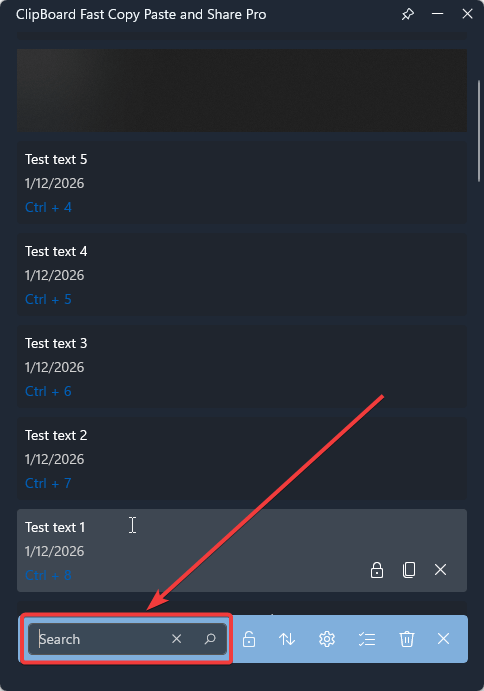
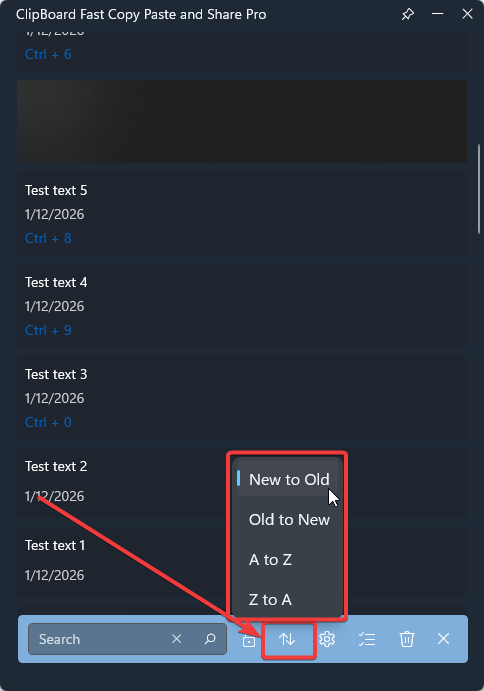
- Also, 4 sorting options are available. Default sorting mode: New to Old.
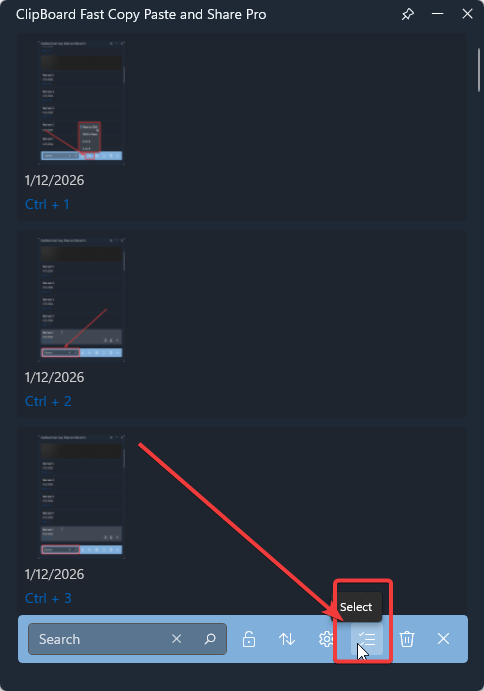
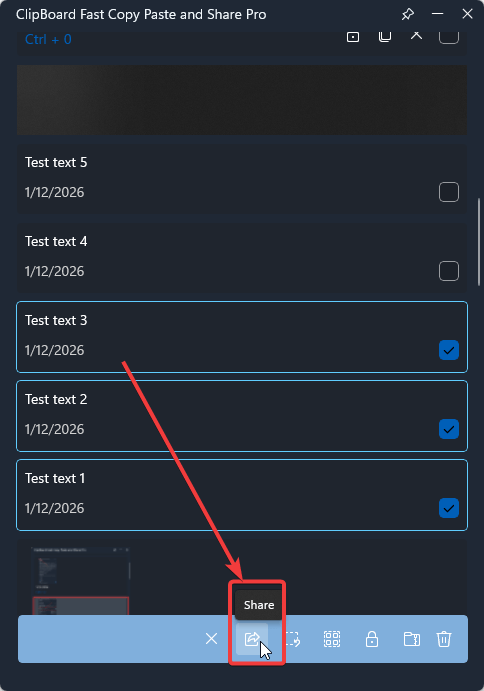
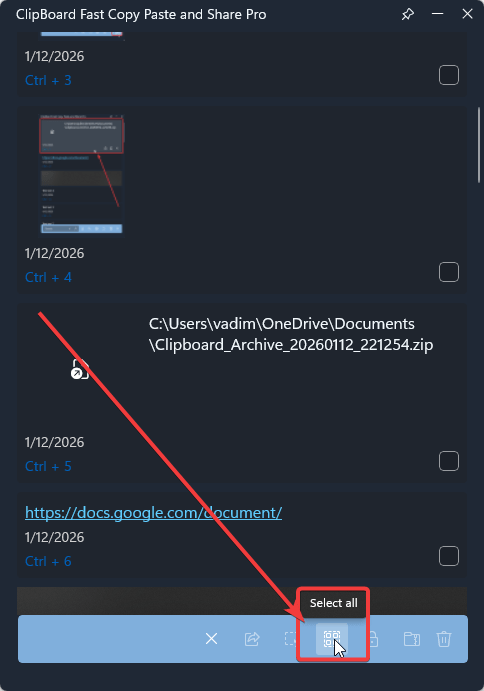
- The Select function allows you to choose one or multiple items for batch operations:
Share, Lock, Archive, Delete
- After entering Select mode, check the boxes next to the required items.
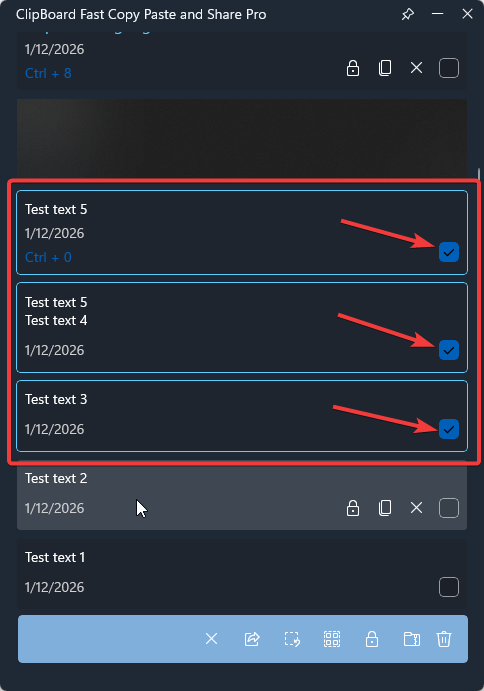
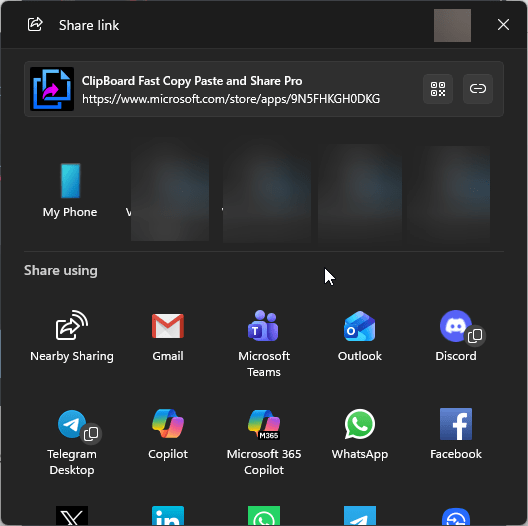
- Share – sends selected text, images, or files via the chosen email client or messenger.
- Lock – Locks selected items until the Windows user password is entered.
- Archive – Creates a local archive containing the selected items.
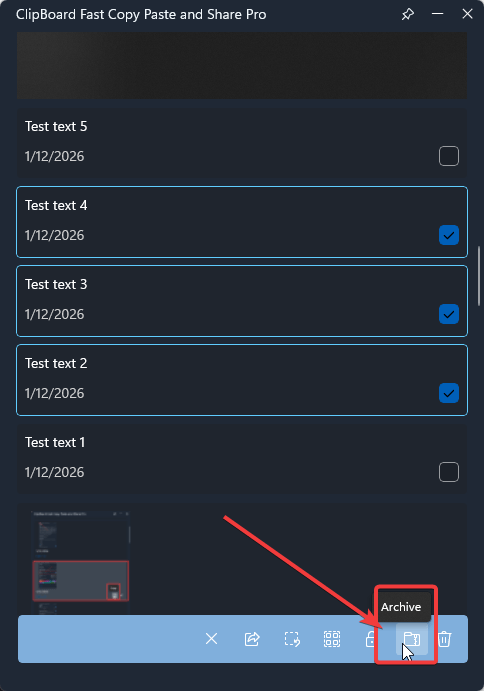
The archive is also added to the item list.
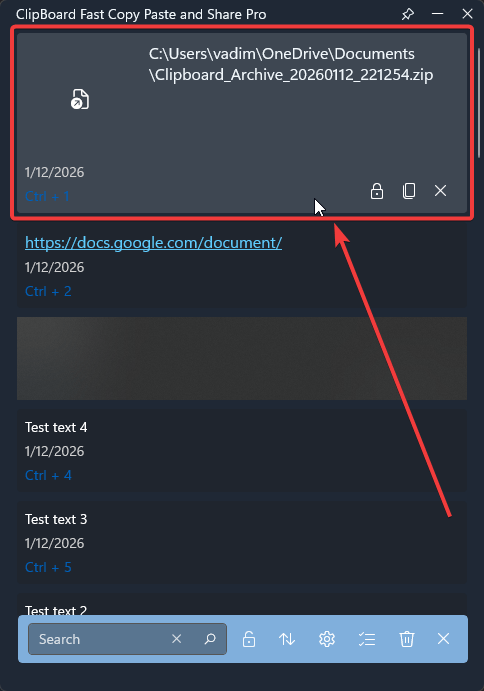
- Delete – removes selected items from the list.
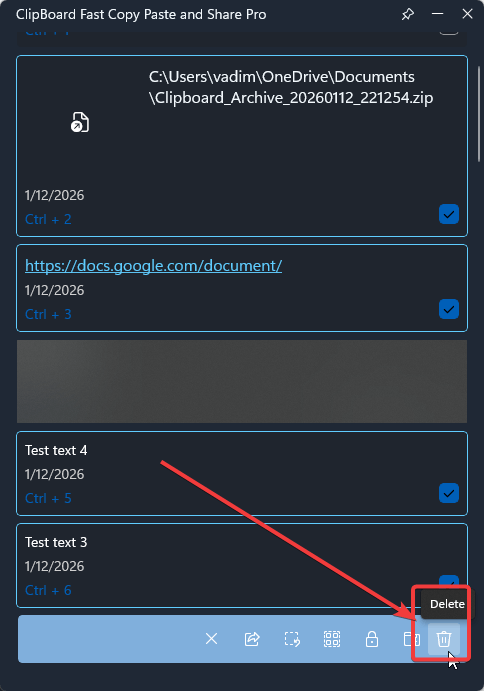
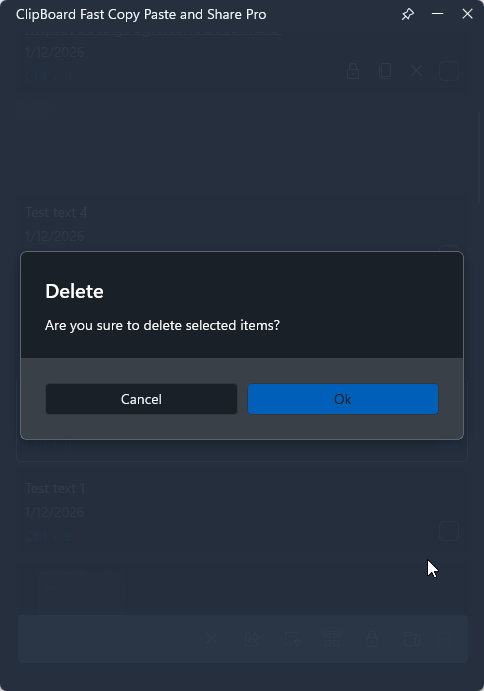
- Items can also be deleted: Individually or in multiple selections
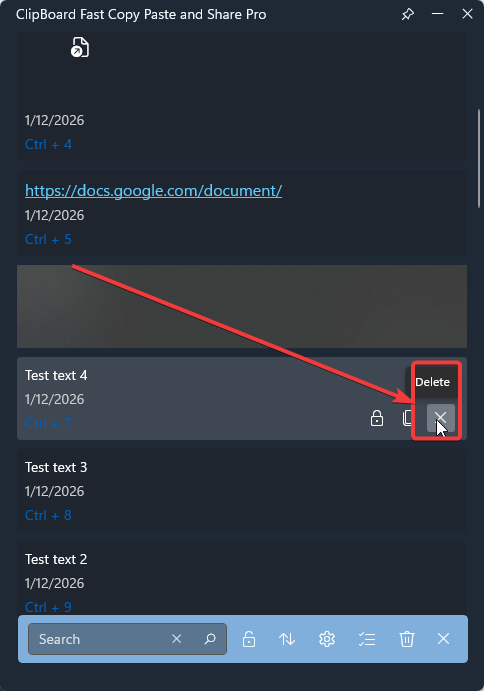
Or all at once via Select mode
If you have any additional questions or require further assistance, please feel free to contact our support team at support@tidalmediainc.com. We will be happy to assist you.
 Tidal Media Inc. — Software for Windows & Cloud Solutions