Configuring and Connecting to RustDesk Server on Windows Server 2025 DC
To connect to the server, you need to know the VM’s IP address.
To allow RustDesk to function properly, the following ports in the Inbound rules of the VN Security group must be open:
- TCP: 21115-21119
- UDP: 21116
Connecting to the Virtual Machine
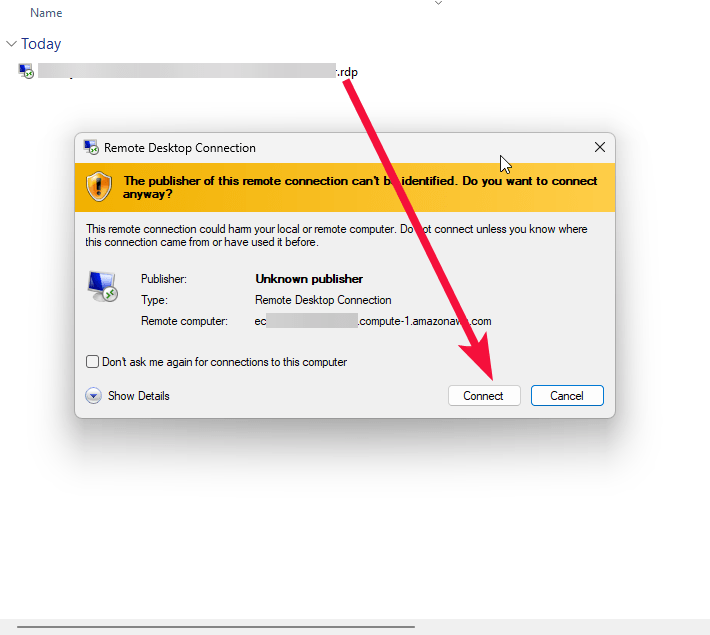
- To connect to the Server, you should generate a “Private Key” in advance. This can be done using Guidance on usage. To connect to the virtual machine, click the Remote desktop file from step 10 of the Guidance on usage
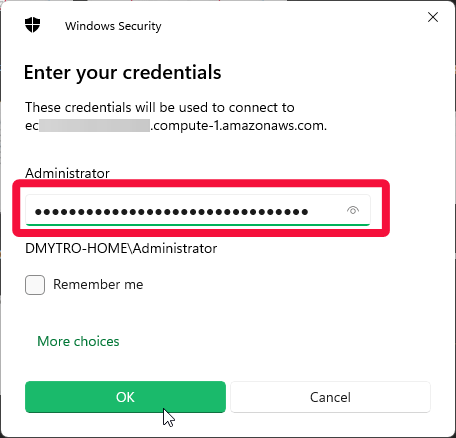
- In the window that appears, enter the password from step 12 of the Guidance on usage and click OK.
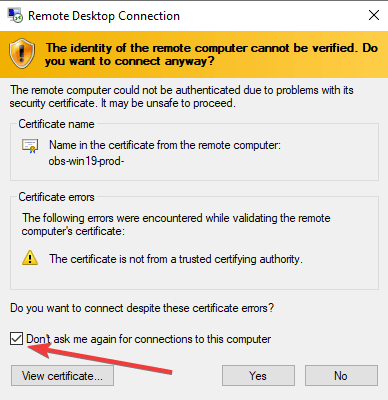
- Check the box and click “Yes”.
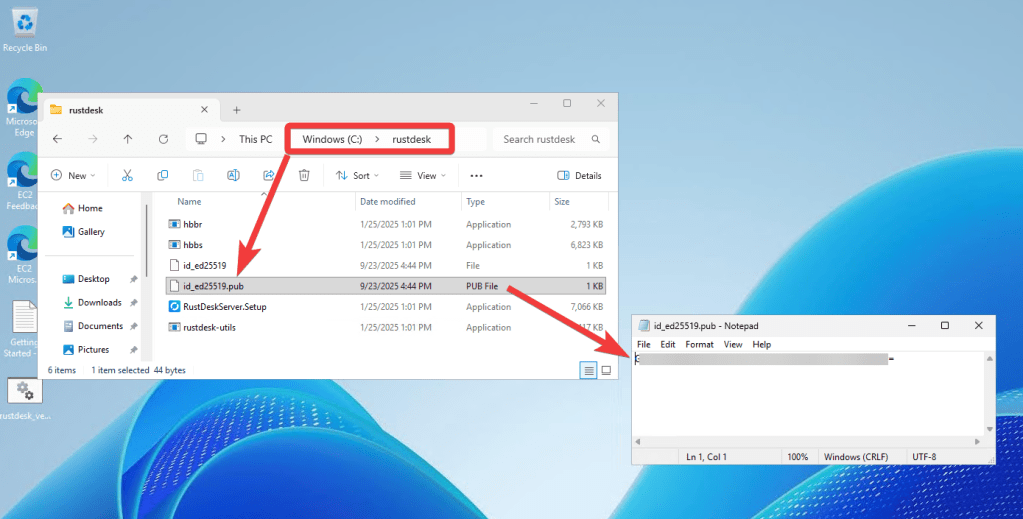
- Open and save the secret key from C:\rustdesk\id*****.pub file on the VM
Setting Up the RustDesk Client
To establish a remote connection through your RustDesk server, install the RustDesk client on your device. You can download it from the official RustDesk website or from Google Play and the Apple App Store for mobile devices.
After installing the client, you need to establish a connection through your server. For example:
- For Windows Clients
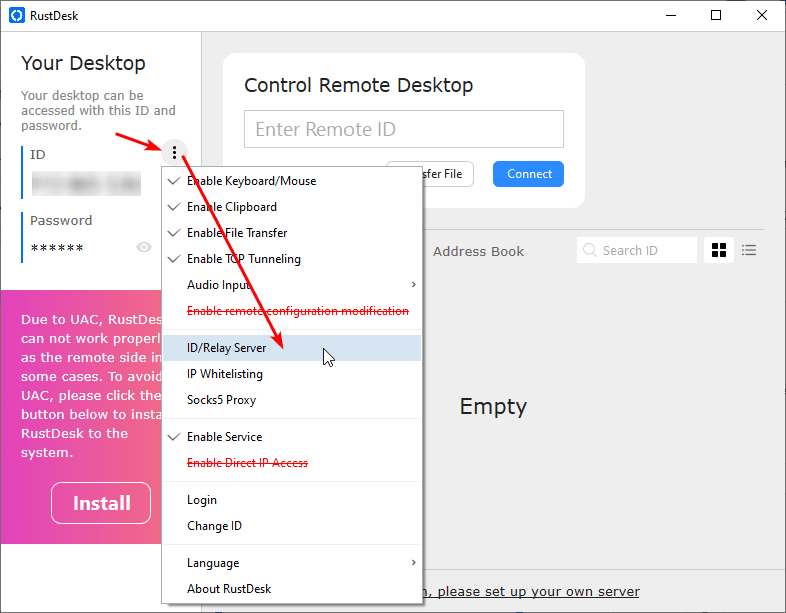
- Open RustDesk and click ‘ID/Relay Server’
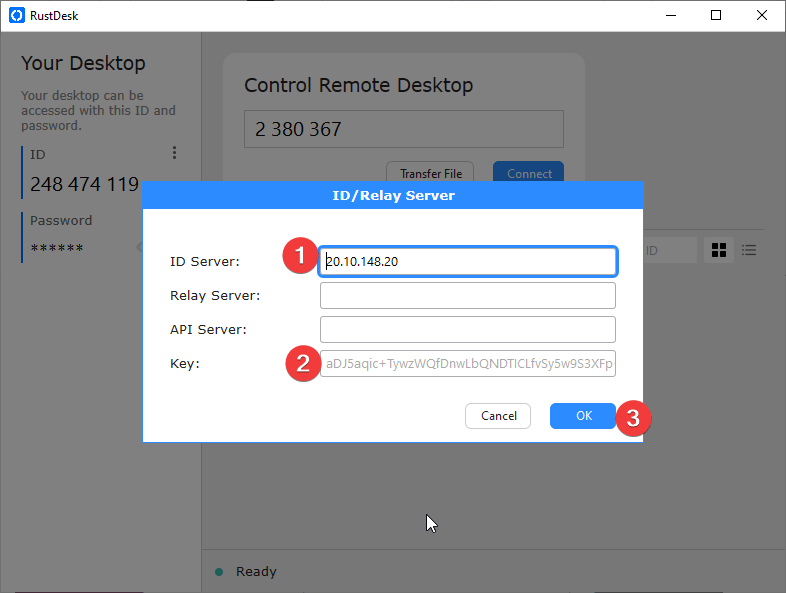
- Enter your VM’s IP, the previously saved key (2) and click ‘OK’ (3)
- Then enter the remote user ID (1), select the needed action (2)
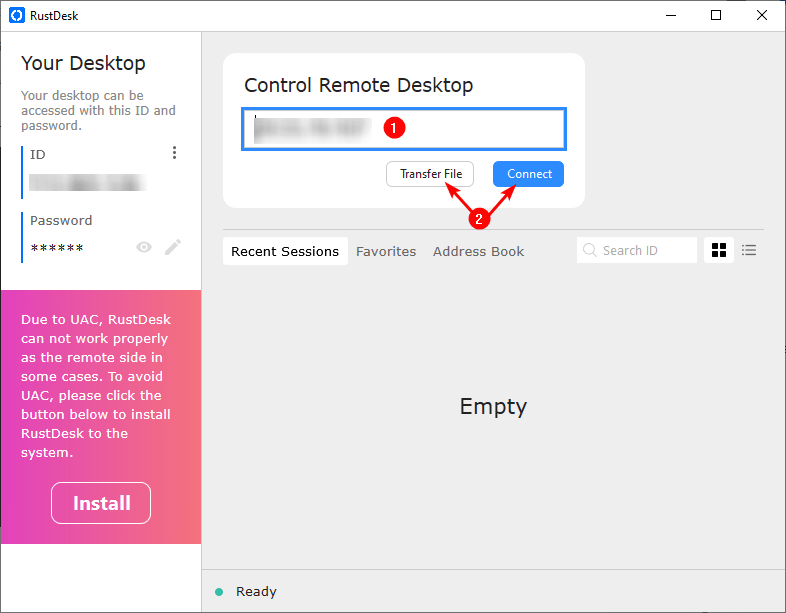
- Enter the remote user password (3)

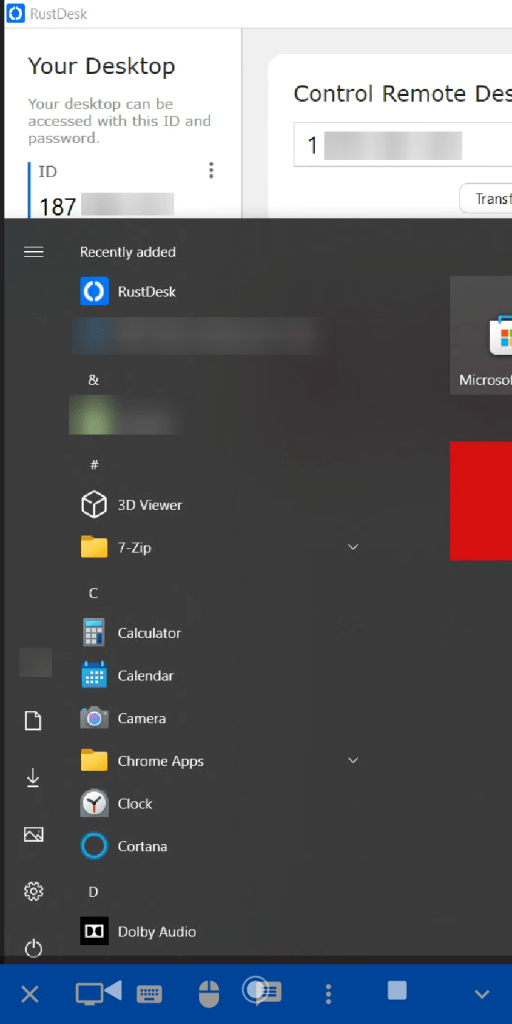
- You are connected (to the mobile device, for example)

- For Android Clients
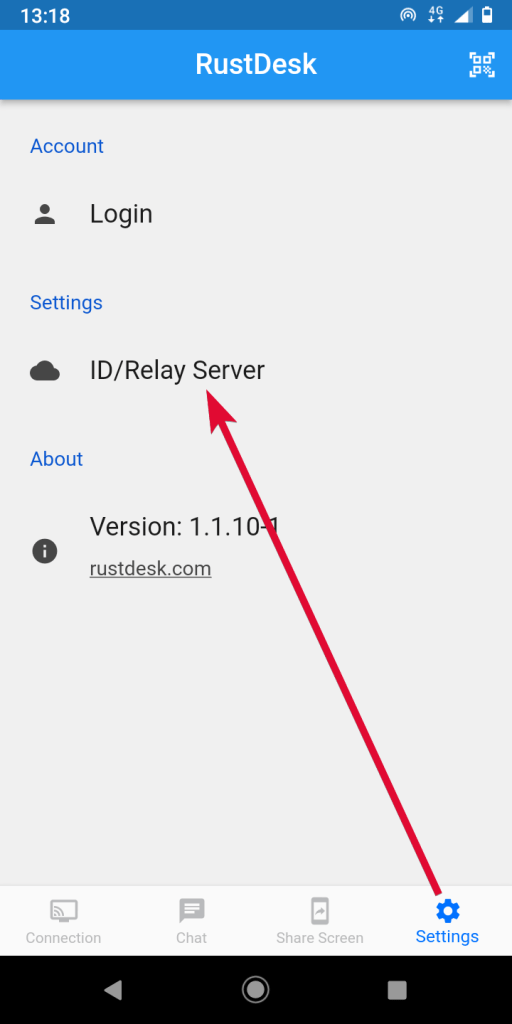
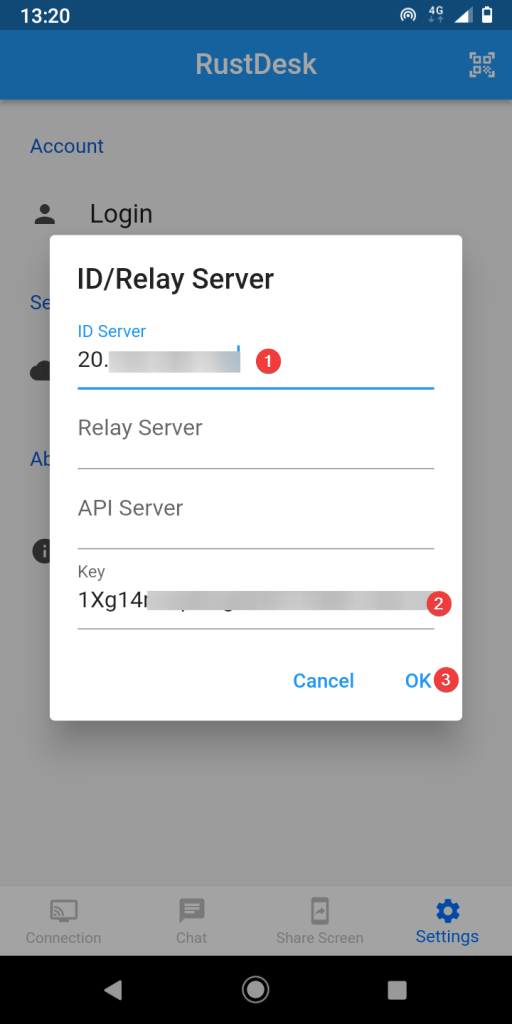
- Open RustDesk and go to “Settings ⇒ ID/Relay Server”
- Enter your VM’s IP (1), the previously saved key (2), and tap ‘OK’ (3)
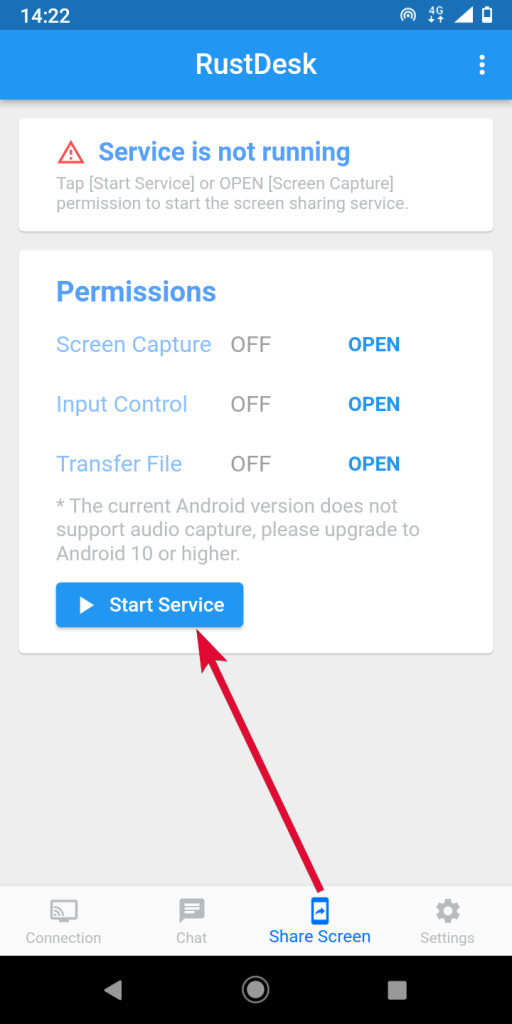
- Then tap ‘Share Screen ⇒ Start Service’
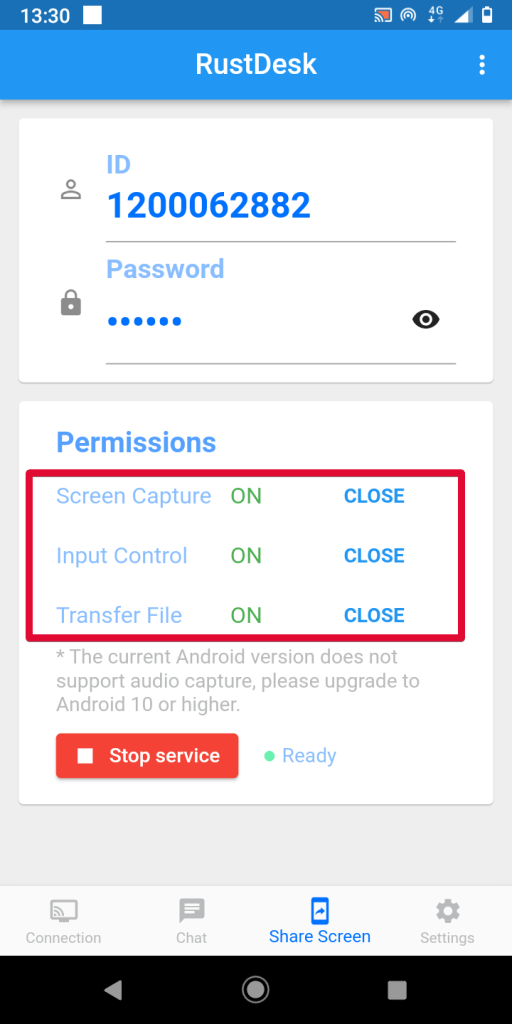
- Grant the required permissions (these may vary depending on the device and Android version).
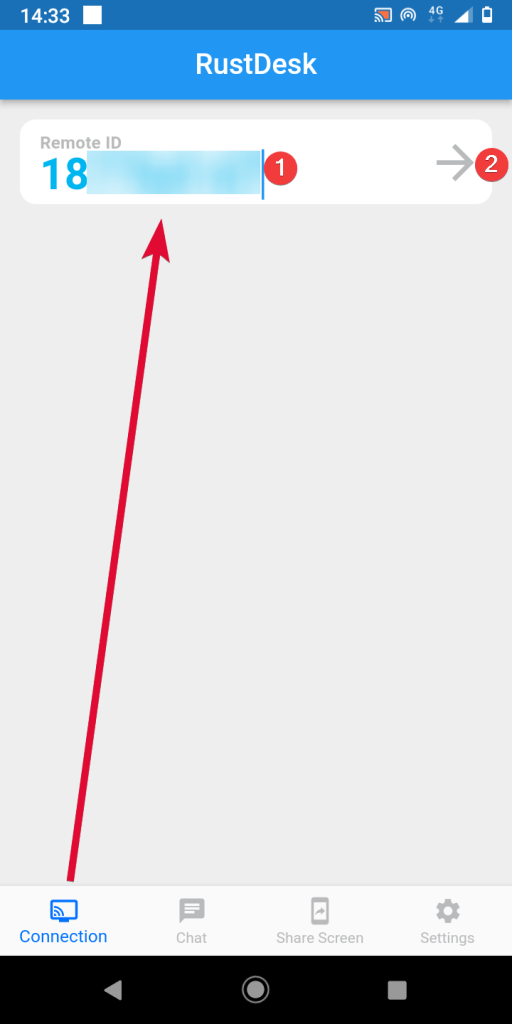
- To connect to the remote device, go tothe ‘Connection’ tab, enter the remote user ID (1), and tap the arrow (2)
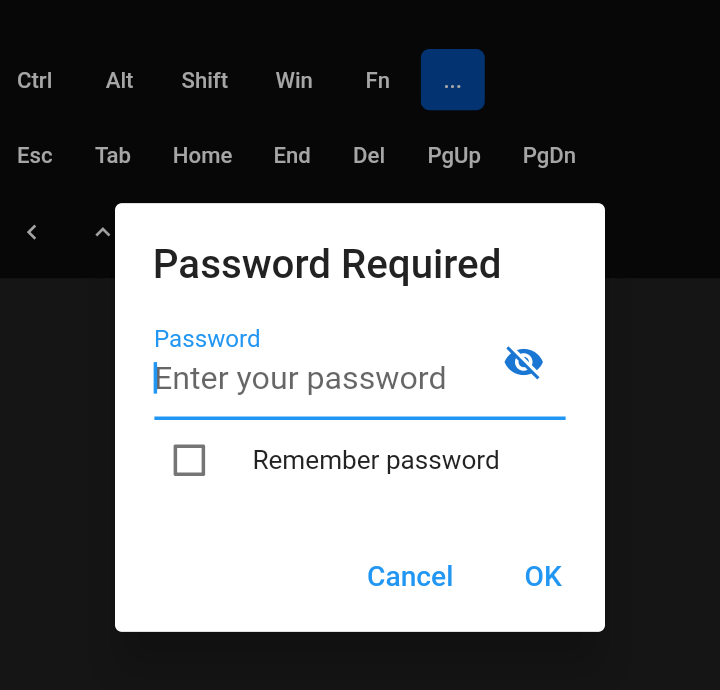
- And enter the remote user password (3)
- You are connected
For further details, refer to the RustDesk Documentation.
 Tidal Media Inc. — Software for Windows & Cloud Solutions