Configuring and connecting to ProFTP for Alpine Linux 3.22
To start the server, run the VM through the Azure Portal.
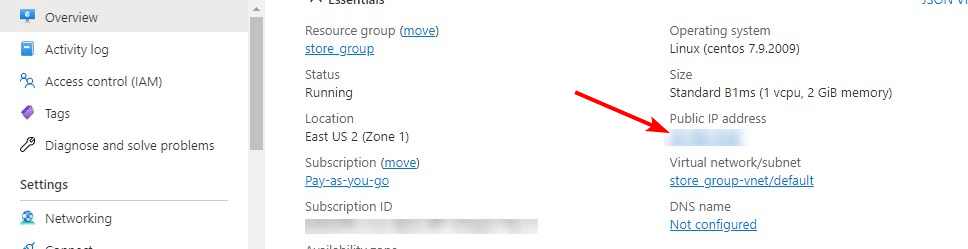
- For the connection to the server, you should know the IP address of the VM. You can find it in your Azure account. You need to select the virtual machine from the list. By clicking the item “Overview”, your IP is displayed in the line “Public IP Address”.
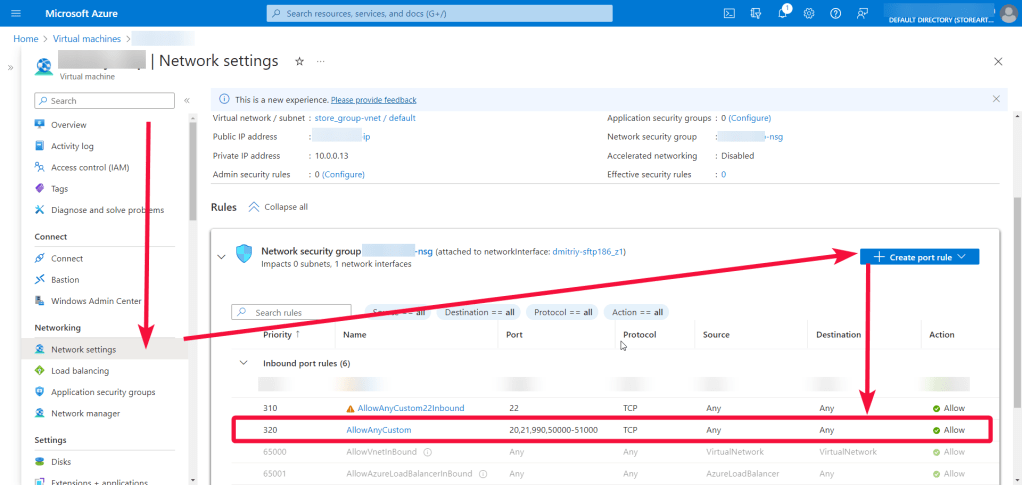
- To work, you must open ports 21, 22, 990, and 50000-51000 (TCP) in the network properties in the Azure firewall.
- To manage a VSFTP server, you should connect to a VM.
- With OpenSSH
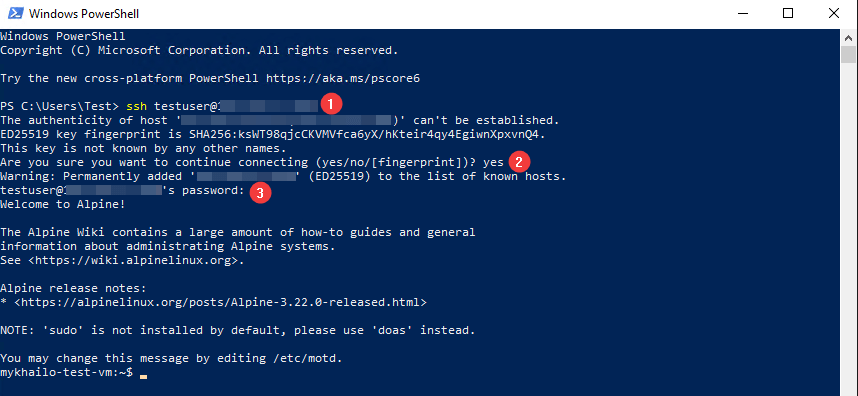
In the Windows 10 operating system (starting with version 1809), an OpenSSH client is available, with which you can connect to Linux servers via SSH. If Windows 10 is suitable and the OpenSSH client is installed, you can start connecting via SSH. To do this, launch a standard Windows command prompt and enter the command “ssh user@*vm_ip*” (1), where “user” is the username that was specified while creating the virtual machine and “*vm_ip*” is the VM IP address.
Then type “Yes” (2) and enter a password (3) that was specified while creating the virtual machine.
- With the PuTTY application
To do this, you need the PuTTY application to connect via SSH. You can download it at the following link – Download.
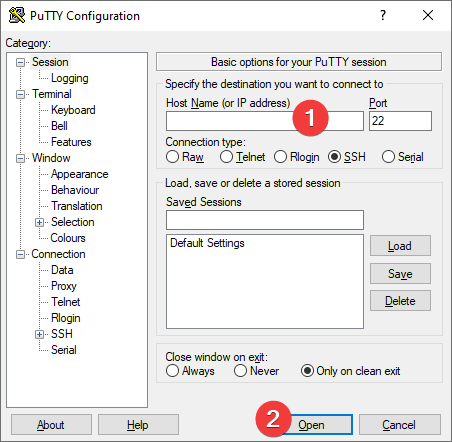
Run PuTTY, enter the VM address in the “Host” field (1), and click “Open” (2) to connect.
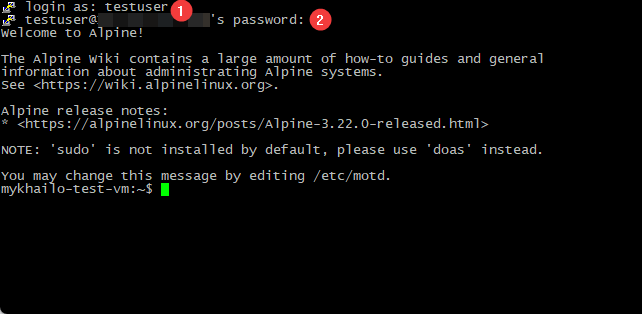
In the opened console, you will need to enter a username (1) and password (2) that were specified while the VM was being created (you’ll not see the password in the console while entering it).
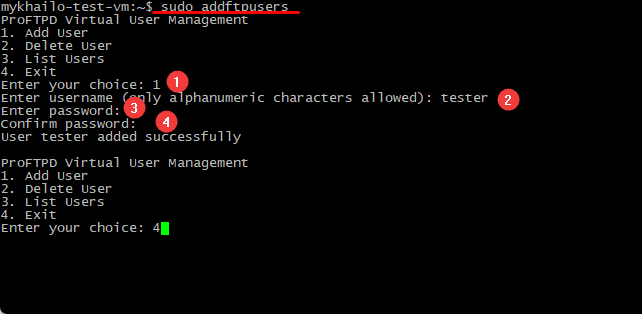
- To create a new user and password to enter FileZilla – run the following commands:
> sudo addftpusers
Select “1 – Add user to FTPS and create folder” (1) and press ‘Enter’
Enter a new user name (2) and press ‘Enter’
Enter a new password (3) and press ‘Enter’
Confirm the new password (4) and press ‘Enter’
- To connect to VSFTP, it is recommended to use the “FileZilla Client” application (you can download it from the link: Download FileZilla Client for Windows (64bit x86)).
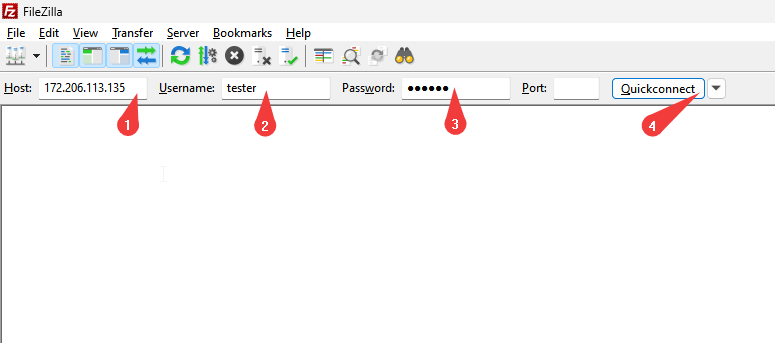
- After installing and running the FileZilla client, you need to follow these steps to connect to the VSFTP server:
- In the <Host> field, enter the VM IP address.
- In the <Username> field, enter the login that was created in Step 5 or the default user from Step 4.
- In the <Password> field, enter the password that was created in Step 5 or the default user from Step 4.
- When the data is entered, press Quickconnect
- After entering all the data and clicking on Quickconnect, you will successfully connect to the server.
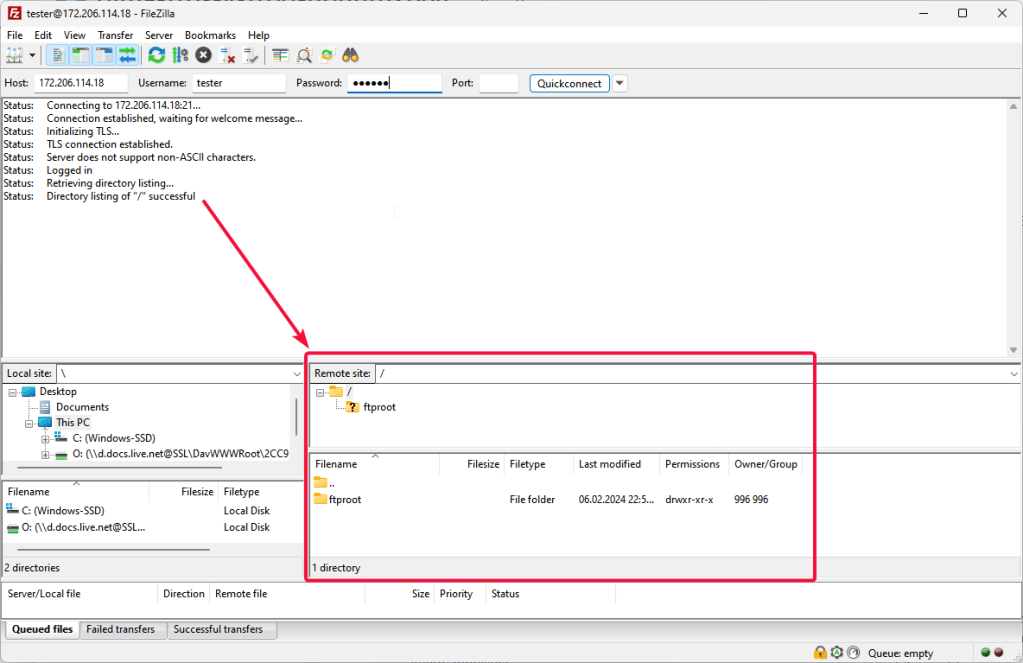
Now you can work with your own ProFTP server.

