PostgreSQL on Windows Server 2025 Datacenter ensures high-performance database management and scalability for enterprise applications. It’s an excellent choice for developers and IT professionals.

This is a quick deployment and ready-to-run image.
Simple and rapid installation. Easy to maintain.
Connection to and Configuration PostgreSQL on Windows Server 2025 DC
Connecting to the Server
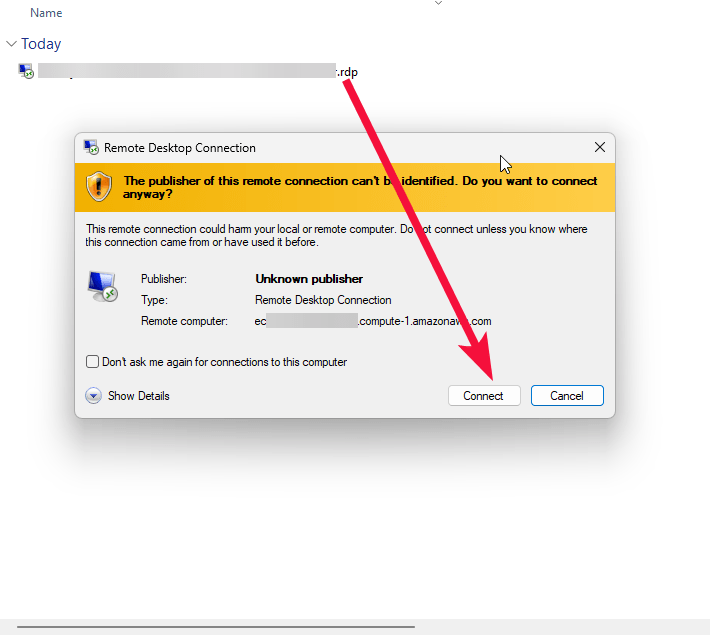
- To connect to the Server, you should generate a “Private Key” in advance. This can be done using the Guidance on usage. To connect to the virtual machine, click the Remote Desktop file from step 10 of the Guidance on usage
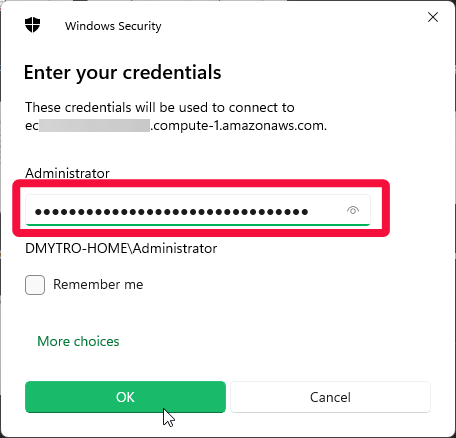
- In the window that appears, enter the password from step 12 of the Guidance on usage and click OK.
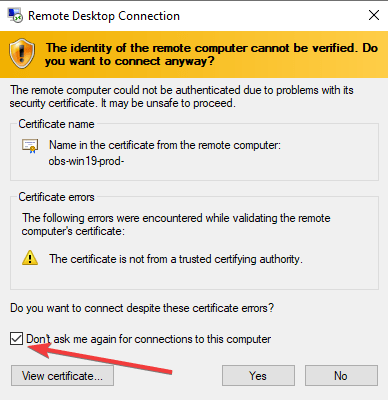
- Check the box and click “Yes”.
Access PostgreSQL via pgAdmin
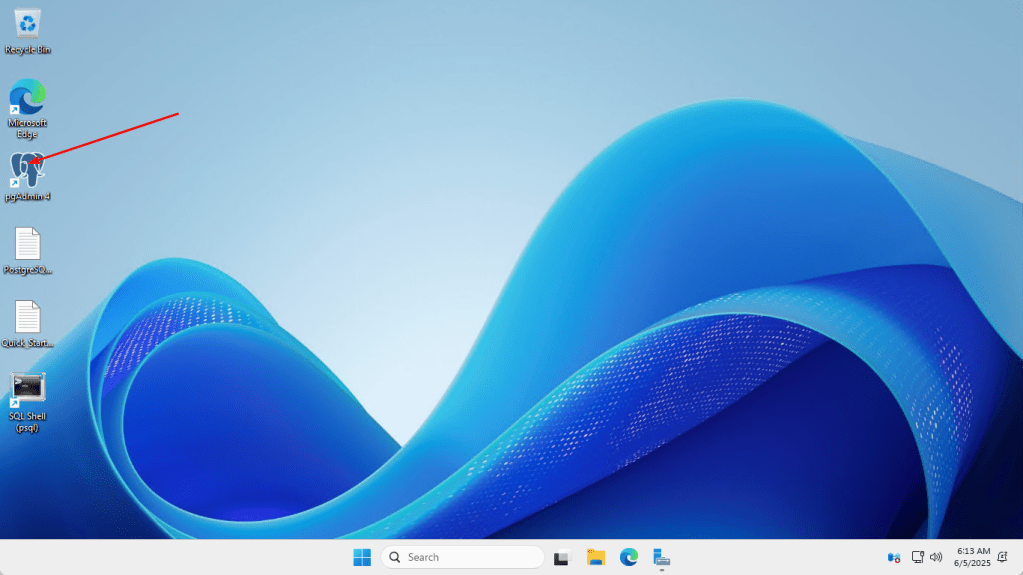
1. Open pgAdmin
Once logged in to the virtual machine, launch pgAdmin from the Start menu or desktop.
2. Set Master Password
If prompted, set a master password to secure your saved connections. Click OK to proceed.
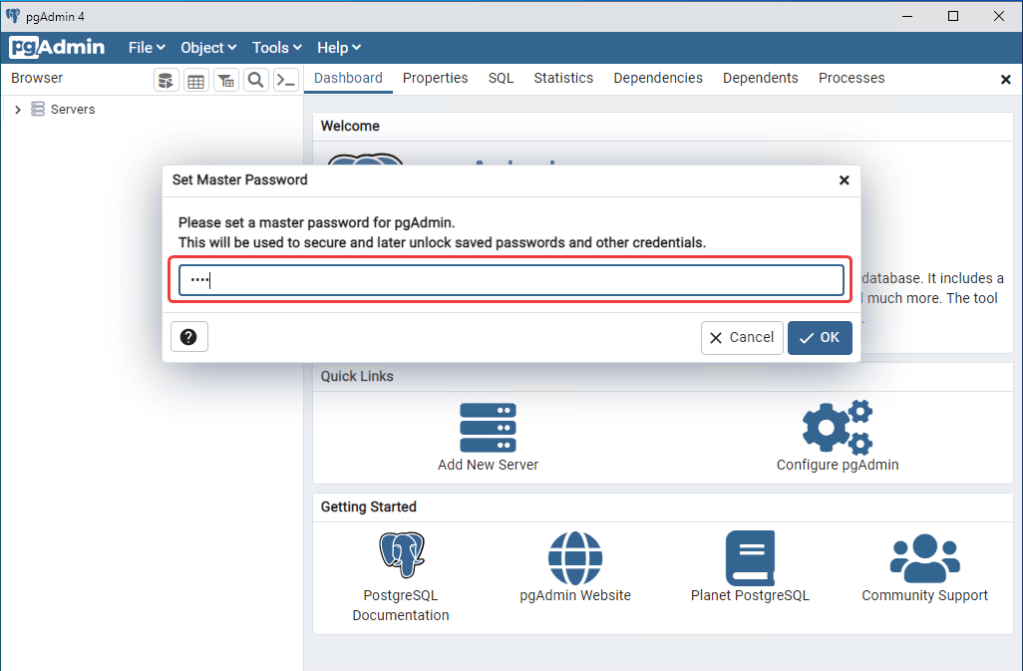
3. Connect to the PostgreSQL Server
3.1. In the pgAdmin dashboard, click on the server named “PostgreSQL 16”.
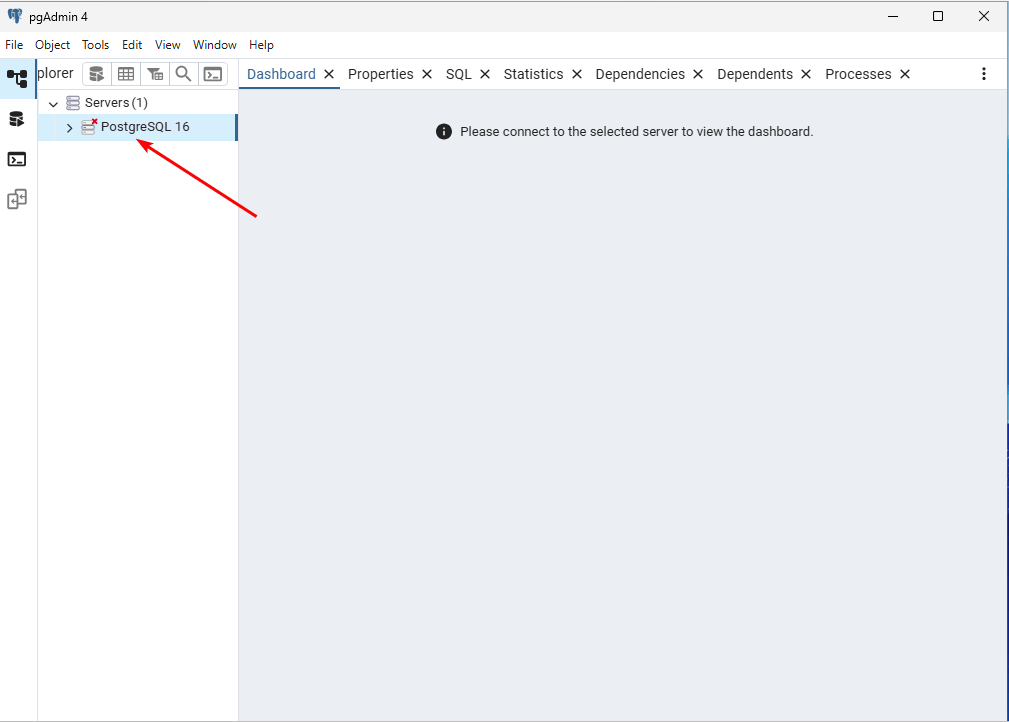
3.2. Enter the password provided in the PostgreSQL_Credentials file located on the desktop.
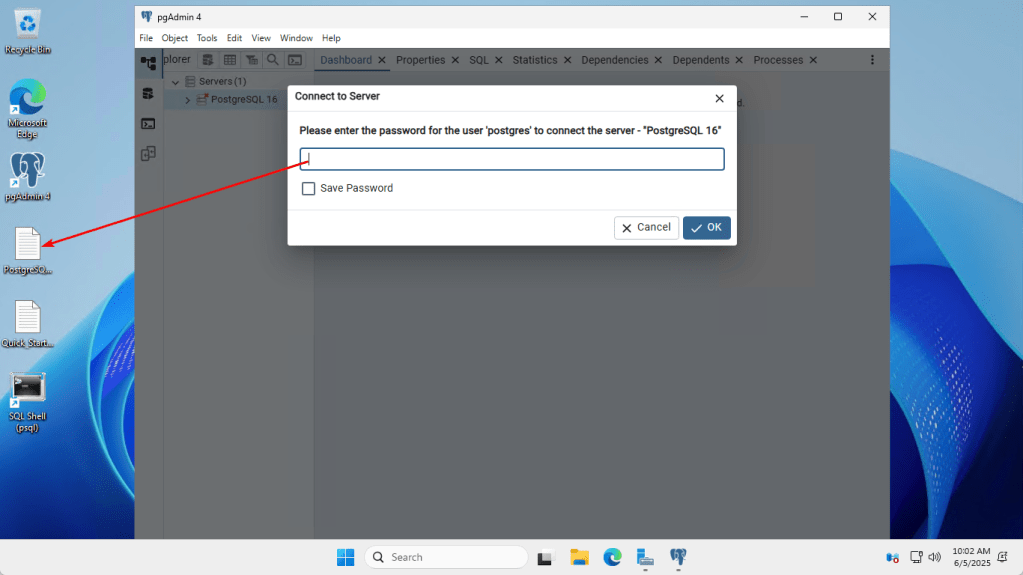
3.3. Click OK to complete the connection.
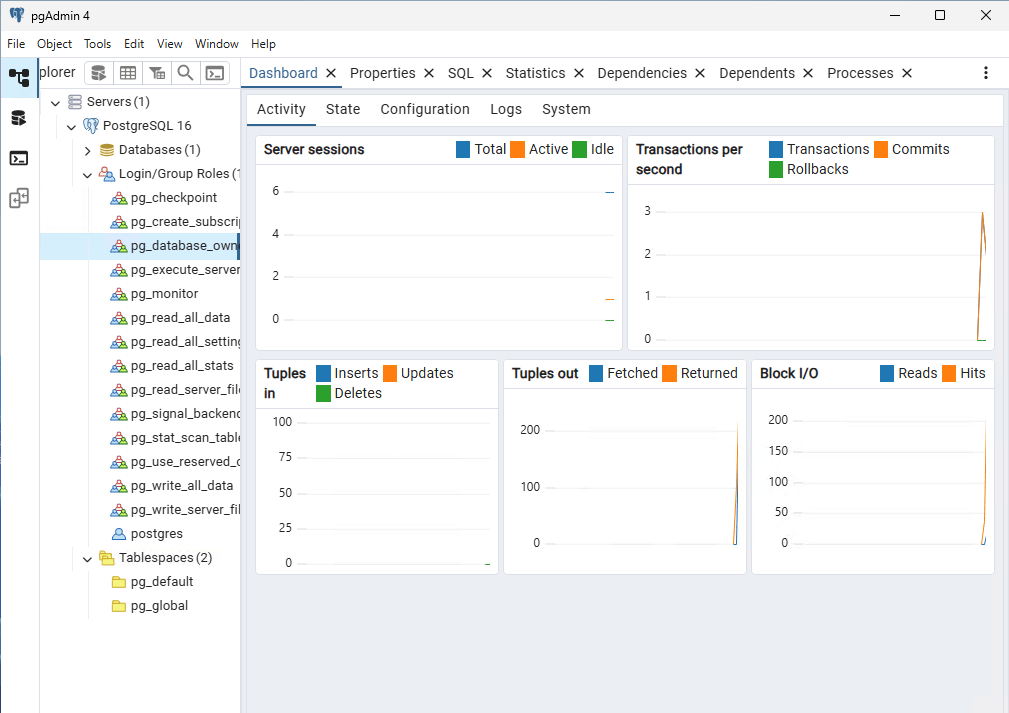
You’re all set to begin using PostgreSQL on Windows Server 2025 DC VM. Whether you’re managing databases, running queries, or exploring PostgreSQL features, this environment provides the flexibility and performance you need.
More information – PostgreSQL: Documentation
 Tidal Media Inc. — Software for Windows & Cloud Solutions