Configuration and connection to Apache Subversion (SVN) Server on Ubuntu 24.04 LTS
- To ensure the VM operates correctly, you need to open TCP port 80 in the Security Group in the AWS Firewall.
- To work with Apache, you can use the Tortoise SVN client for Windows OS: Downloads · TortoiseSVN
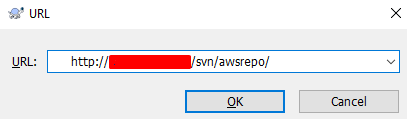
- After the client is installed, run “TortoiseSVN Repository Browser”. In the opened window, enter the link http://ip/svn/awsrepo (where in the link, instead of “IP,” type the real IP of the virtual machine on AWS) and click “OK”:
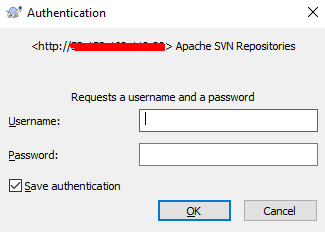
- In the “Authentication” window, enter login ‘awsuser’ and password ‘awspwd‘ and click ‘OK’
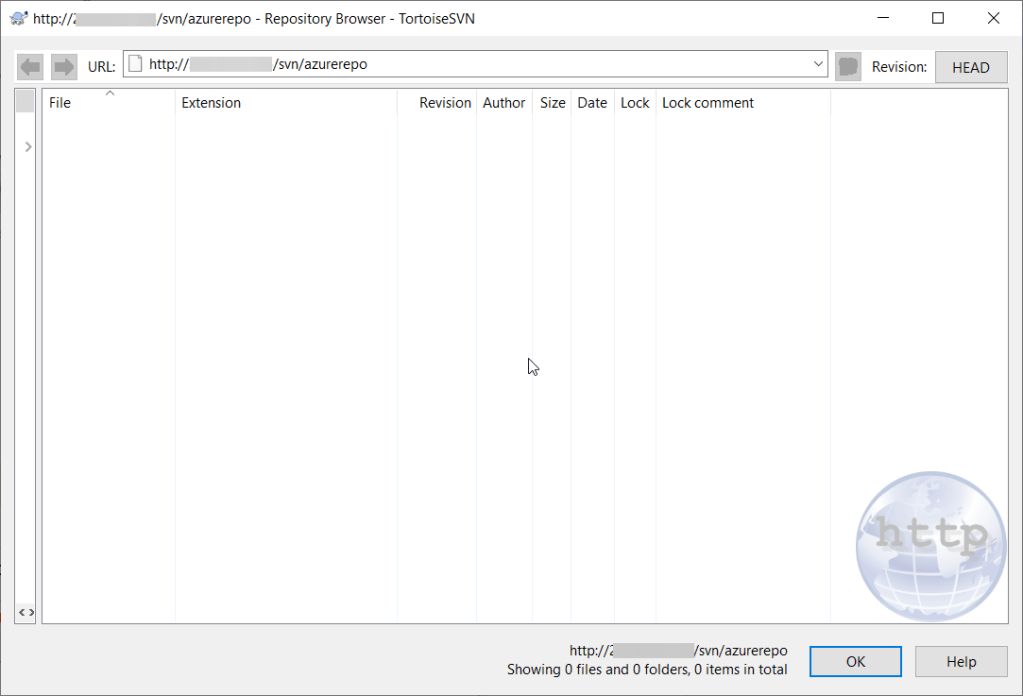
- The main application window will open:
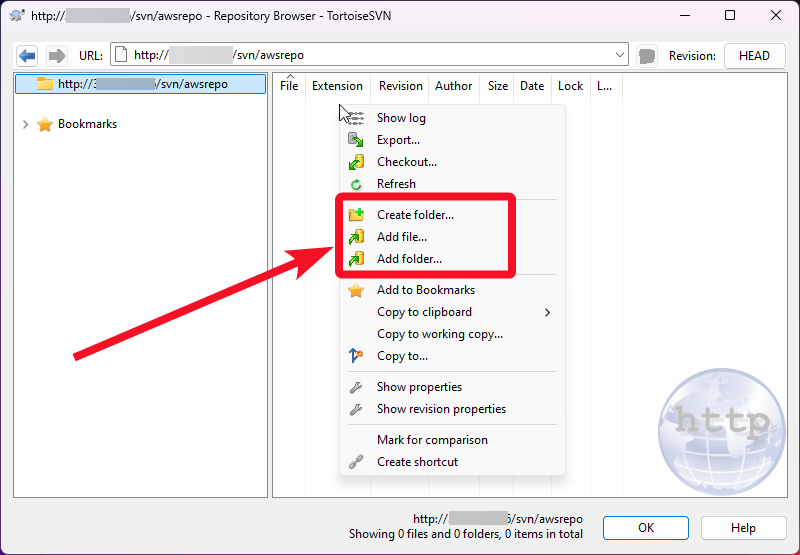
- In the opened application window, right-click on the application area and select “Add file” or “Add folder” to upload files or directories to the server.
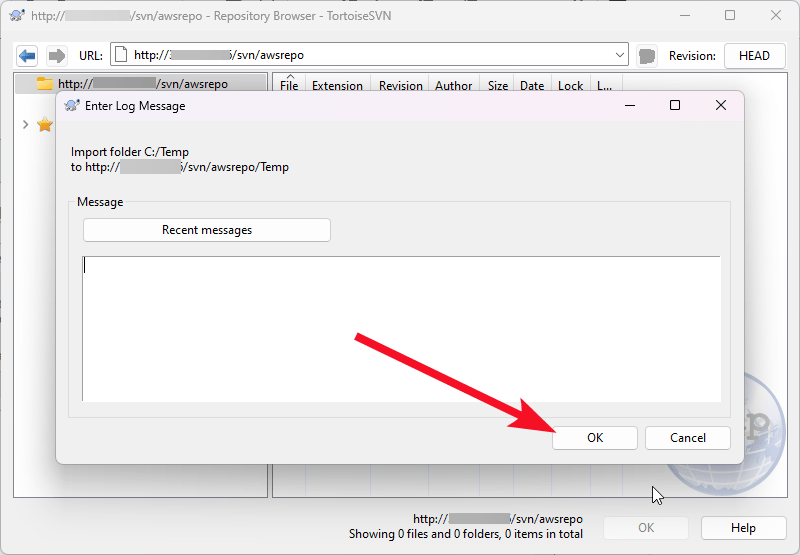
- In the next window, click “OK”:
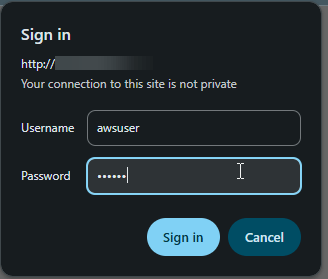
- After downloading the file, follow the URL http://ip/svn/azurerepo on your web browser (where in the link, instead of “IP”, type the virtual machine’s real IP on Azure). The authorization window opens. Enter login ‘awsuser’ and password ‘awspwd‘ and click ‘Sign in’
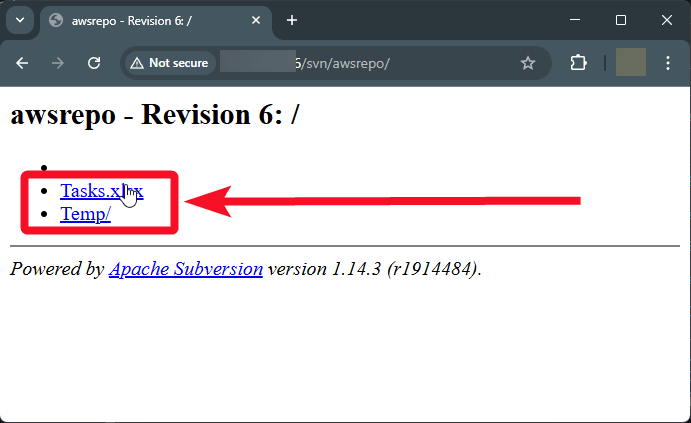
- You see the recently added files and directories.
Now you can work with your own Apache Subversion server
 Tidal Media Inc. — Software for Windows & Cloud Solutions